
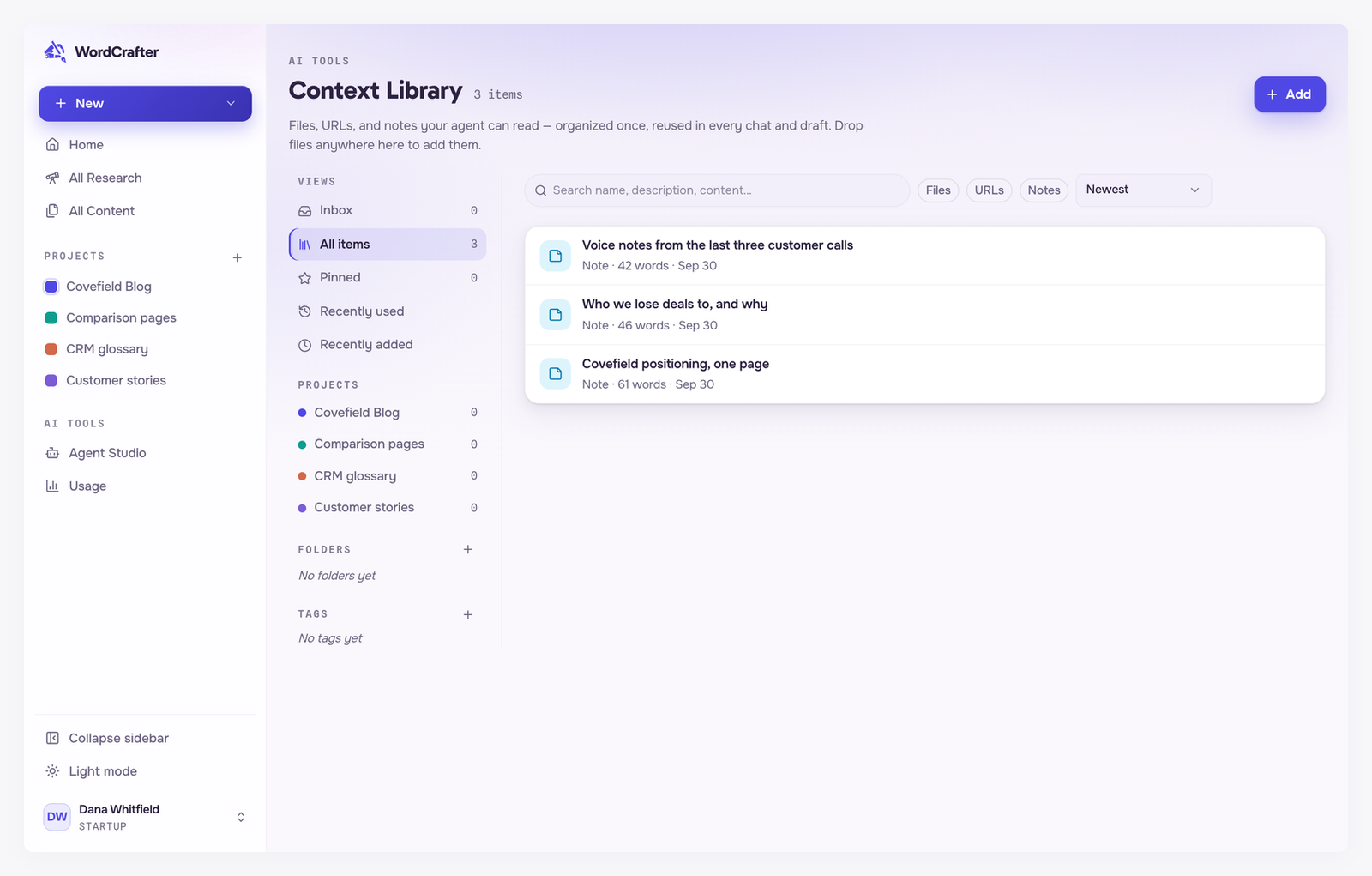
The Context Library is your agent's reading shelf. Put reference material in it once, such as a positioning doc, a pricing sheet or notes from customer calls, and attach it whenever you want the agent to work from it.
Open it from Agent Studio → Context Library, or on its own screen. Both show the same library.
Add something
Click Add (or New context in Agent Studio) and choose one of three kinds of item:
Upload file. You can also drop files anywhere in the Context Library.
Add URL. WordCrafter fetches the page and keeps its text.
Write a note. Plain text you type or paste, like a summary of a sales call.
Supported files
PDF, Word (.docx), PowerPoint (.pptx), CSV, JSON, HTML, plain text (.txt), Markdown (.md) and RTF, up to 25 MB each.
A PDF goes into the Context Library as reference material, but it cannot become content. Importing content takes a URL, Markdown or a paste. To publish something that only exists as a PDF, copy its text and paste it into an import.
Keep it organized
Views in the sidebar: Inbox, All items, Pinned, Recently used and Recently added.
Folders and Tags, which you create with the + next to each heading.
Search and filters. Search matches an item's name, description and content. The Files, URLs and Notes chips narrow the list to one kind.
Select one or more items to move them to a folder, tag them, pin them or add them to a project.
Give items to the agent
The agent reads what you attach to a message. In the AI Assistant's Agent tab, type @ in the message box or click the add-context button. In the Targeted tab, click Add context. Then pick items or a whole folder.
In the Agent tab, single items are sent in with your message. An attached folder gives the agent the list of what is inside, and it opens the items it needs.
In the Targeted tab, the items you attach, including those in a folder, go in with the request.
Each item is read up to about 40,000 characters. A longer item is marked in the library as larger than the per-item AI limit, and the agent reads only the first part of it. In the Targeted tab, everything attached to one request shares a budget of about 100,000 characters. For a long document, a focused note with the parts that matter often works better than the whole file.
Adding to a project never copies
There is one library, and it belongs to your account. Adding an item to a project does not copy it: the item shows up in that project's library, and it stays the same item. Edit it once and every project it is in sees the change.
Inside a project, anything you create lands in your account library and is added to the project automatically. Remove from project takes it out of the project only. The item stays in your library.