
Two sections of Agent Studio save you from setting the same things up again for every draft. Saved Instructions keeps prompts you reuse. Models & behavior sets the models and edit style every new draft starts with.
Saved Instructions
A saved instruction is a prompt with a name, such as "Cut it by a third" or "Add the counterargument". Save it once and apply it to any draft from the AI Assistant.
Save one from the AI Assistant
The quickest way to build up your saved instructions is from the editor:
Write a prompt you like in the AI Assistant.
Click the Saved instructions icon under the message box, then Save current setup.
Give it a name and, if you like, some tags. Press Enter after each tag. Then click Save instruction.
Saved from the Targeted tab, an instruction also captures that tab's settings, such as the model, tone, length and language. Saved from the Agent tab, it keeps the prompt only.
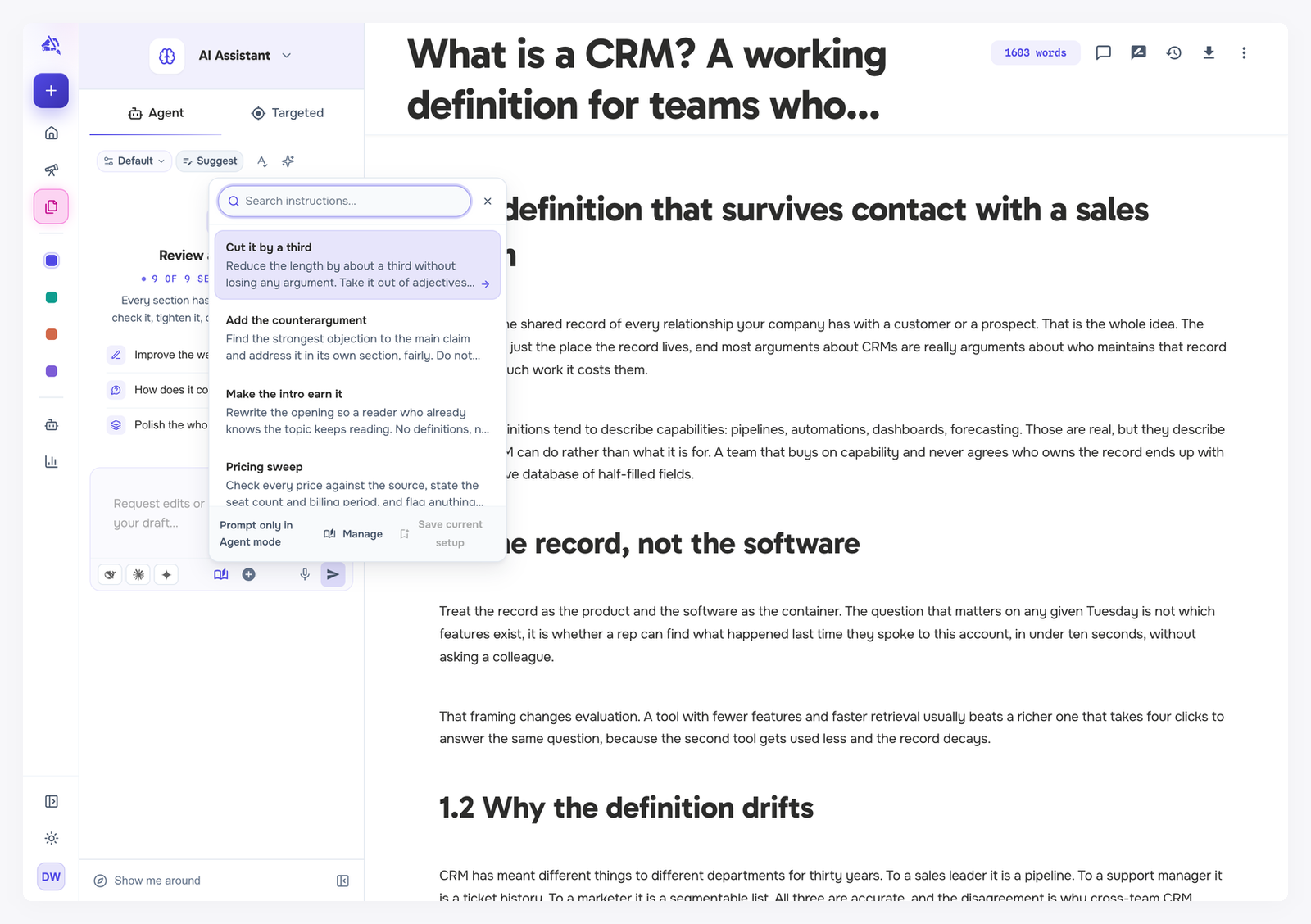
Apply one
Open the Saved instructions icon, type to filter, and click an instruction or press Enter. If the message box already holds text you typed, you are asked whether to Replace it or Keep mine.
In the Targeted tab, turn on Include saved settings to restore the settings saved with the instruction, not just its prompt.
In the Agent tab, only the prompt is applied.
Manage your saved instructions
Under Agent Studio → Saved Instructions you can search, edit an instruction's name, tags and prompt, delete it, or click New to write one from scratch. Settings saved with an instruction show as read-only chips. To change them, save the setup again from the Targeted tab.

Your saved instructions are available in every project. A project can also have its own, which show up alongside your account-wide ones inside that project.
Models & behavior
The agent uses up to three models, each with its own job:
Thinker plans the work. It reads your draft and research, decides what to change, and asks when something is unclear.
Writer drafts the copy the Thinker planned, one section at a time, to the length target.
Image generates images when the agent needs one in the draft.

Under Agent Studio → Models & behavior, pick a Default writer model, Default thinker model and Default image model, and a Default edit strategy:
Suggest changes: edits arrive as tracked suggestions you approve.
Apply directly: edits land in the draft immediately.
Changes save as you pick. The layers work like this:
Your account defaults apply to every new draft.
A project's own defaults, set on its Agent Studio tab, override them for that project.
A draft can override both. In the Agent tab, click a model under the message box to change it for that draft only, or tick Also set as my default for new drafts.
A mode can pin its own models and edit strategy too. See Rules and modes.

If you pick a Writer that is less capable than your Thinker, the Writer picker shows a tip: a stronger Writer typically produces better prose.
If a model is marked as not available, pick another one or connect your own API key for its provider. Which models count toward your AI usage allowance is covered in Research credits and AI usage.