
Every time the agent writes, it brings more than your prompt. It knows what your company sells, how you like things phrased, and which words you never want to see. All of that lives in one place: Agent Studio, under AI tools in the app sidebar.
This article covers the eight sections of Agent Studio, and the question most people end up asking: when your account says one thing and a project says another, which one does the agent follow?
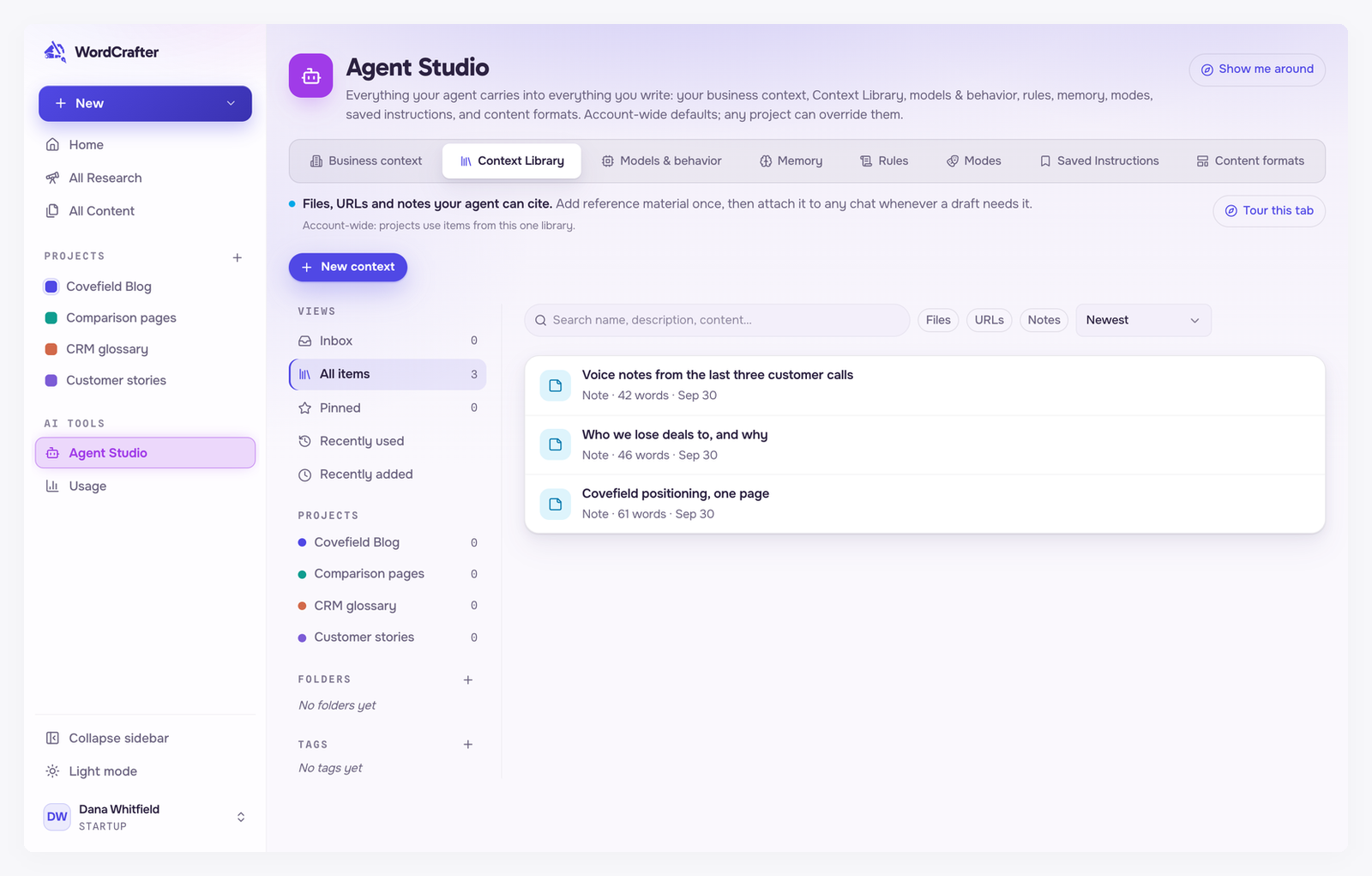
The eight sections
Business context. Who your business is and what it sells: a company profile, your offerings, your audience and your proof. Commercial pages are written from these facts. See Business context.
Context Library. Files, URLs and notes you want the agent to read, such as a positioning doc or notes from customer calls. See The Context Library.
Models & behavior. The defaults every new draft starts with: which model thinks, which one writes, which one makes images, and whether the agent suggests changes or applies them directly.
Memory. What the agent has learned about your voice and how you like to write as you work, which you can review, tidy and correct.
Rules. Standing guidance, like your house style or a banned-words list. See Rules and modes.
Modes. Ways of working that change what the agent does for a task, such as Brainstorm, which never touches the draft, or Drafter, which writes and tightens prose. There are four built-in modes, and you can add your own.
Saved Instructions. Prompts and AI Assistant setups you saved so you can reuse them in one click.
Content formats. How each kind of content is researched and written, with the content language both share. The content language is also the language the AI writes in by default. Long-form article sets how many core topics and subtopics an article outline gets, and how much blog posts and articles draw on your business context (see Business context). Commercial pages holds Page Structures (the sections a commercial page must have) and Writing Recipes (how each section gets written); those only affect product, service and landing pages, so they are covered with research for commercial pages.
Account defaults and project settings
Agent Studio in the sidebar holds your account defaults, which apply to everything you write. Each project has the same eight sections on its own Agent Studio tab, next to Research and Content in the project. What you set there applies only to that project's content.
The sections do not all combine the same way. Under each section's description, a short line tells you how that section behaves.
Sections where the project replaces the account
Business context. A project with its own business context uses it instead of the account one. A project without one uses your account's. That also counts for commercial pages: they can be written from your account context when the project has none.
Models & behavior. A model or edit strategy set on a project overrides your account default for that project. A draft, or a single request, can override it again.
Content formats. What you pin on a project overrides your account defaults. On the Long-form article tab each setting can be pinned on its own; the rest follow the account.
Sections where the project adds to the account
Rules and Memory. The agent uses your account's rules and memories plus the project's, and any that belong to the draft you are working on. When two rules conflict, the more specific one wins, except that a rule marked HARD is always applied.
Modes. A mode filed under a project is still available everywhere. Filing only keeps your list organized.
Saved Instructions. A project shows its own saved instructions plus your account-wide ones.
The one shared library
There is only one Context Library, and it belongs to your account. A project does not get a copy. You add items from your library to it, so when you update a file or note, every project it is in sees the change.
Put what is true everywhere on your account: your house style, your banned words, your company facts. Save projects for what is genuinely different, like a client with its own voice or a product line with its own audience.
Changing settings while you write
You do not have to leave the editor. In the Agent tab of the AI Assistant, the Agent Studio icon opens Agent Studio's sections, such as Rules, Memory and Modes, already pointed at the draft you came from. There you can add a rule for that draft alone, or switch the list to show only the rules that apply to it.