
When the pages ranking for your keyword sell something, an outline is the wrong answer. Commercial research returns a page plan instead: the sections your page needs, in order, each one backed by what the ranking pages actually do.
This article covers what commercial research shows you, how the page plan is built, and how to change it. The agent does the reading. You decide what the page becomes.
What commercial research shows you
A research is commercial when you target a commercial format: a product page, a service page or a landing page. Its results screen has two halves.
SERP Intelligence, on the left, is the evidence: what the ranking pages contain.
Your Page Plan, on the right, is the page you will build.
Five tiles sit across the top. Sections and Target length are medians across the ranking pages. Pages analyzed counts the pages behind those numbers. Intent and Format repeat the targeting you chose.
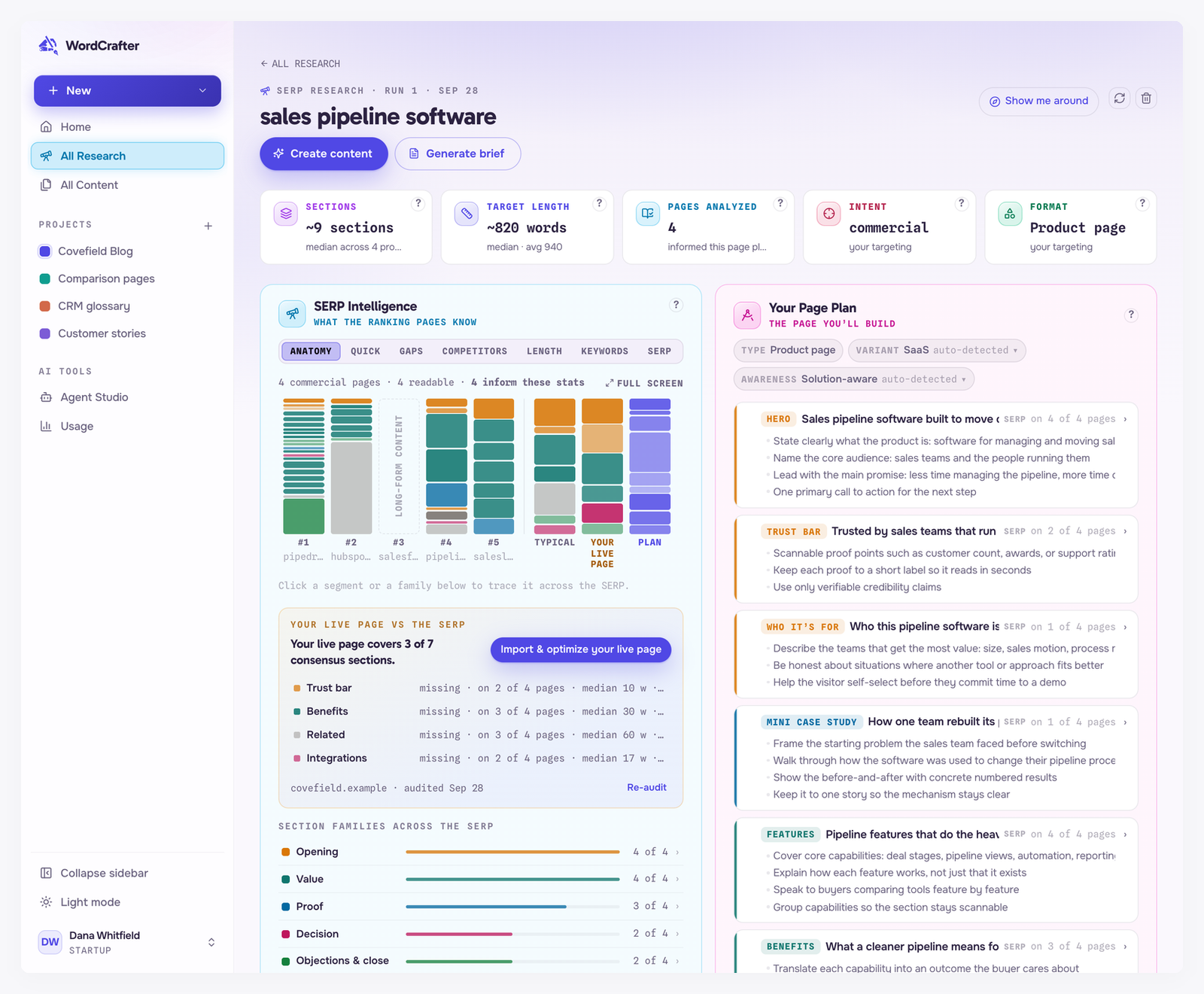
Only readable pages that match your targeted format shape the numbers. A long-form guide ranking for the same keyword still appears in the results, but it does not shape a product page. The line above the anatomy map says how many pages count, for example "4 commercial pages · 4 readable · 4 inform these stats".
Read the anatomy map
The Anatomy tab draws each ranking page as a column of sections, colored by family. Three more columns follow them:
Typical is the page the ranking pages add up to.
Your live page is your own live page, once you audit it.
Plan is the page WordCrafter proposes.
Click any section, or a family in the list under the map, to trace it across every column. Full screen gives the map the whole window.

The six section families
Every section is one of 32 section types, and every type belongs to one of six families.
Family | Section types |
|---|---|
Opening | Hero, Trust bar, Problem statement, Who it's for |
Value | Benefits, Features, How it works, Use cases, What's included, Process, Specifications, Media |
Proof | Testimonials, Mini case study, Reviews & ratings, Awards & press, Team & credentials, Local presence |
Decision | Pricing, Comparison, Vs. alternatives, Integrations, Security & compliance, Shipping & returns, Offer |
Objections & close | Objection handling, FAQ, Guarantee, Call to action, Why us |
Context | About, Related |
Section families across the SERP, under the map, counts how many ranking pages carry at least one section from each family.
Your live page against the SERP
Audit your live page and it joins the map as its own column. Your live page vs the SERP then counts how many of the SERP's consensus sections your page covers, and lists each missing one with how many ranking pages carry it and their median length. Import & optimize your live page brings your page into the editor with that verdict attached. Re-audit reads it again after you change it.
How the page plan is built
AI reads each ranking page and labels its sections. From those labels, choosing which sections go in follows fixed rules. AI then arranges the chosen sections and words them.
The section count is the median. If the ranking pages have a median of nine sections, your page plan gets nine.
Your must-haves go in first. Every section you require in Page Structures enters the page plan, even when they add up to more than the median.
The SERP fills the rest. The remaining places go to the section types the most ranking pages carry. A type found on a single page only makes the page plan when nothing more common is left.
AI sets the order, guided by the SERP. The sections are arranged for conversion, using where ranking pages usually put each one. When the page plan includes a Hero, it always comes first, and a Call to action always comes last. If that pass fails, your must-haves keep the order you gave them in Page Structures, and each section taken from the SERP slots in where ranking pages usually put it.
Each section then gets a working title and up to four key points, grounded in the headings the ranking pages actually use.
Type, variant and awareness
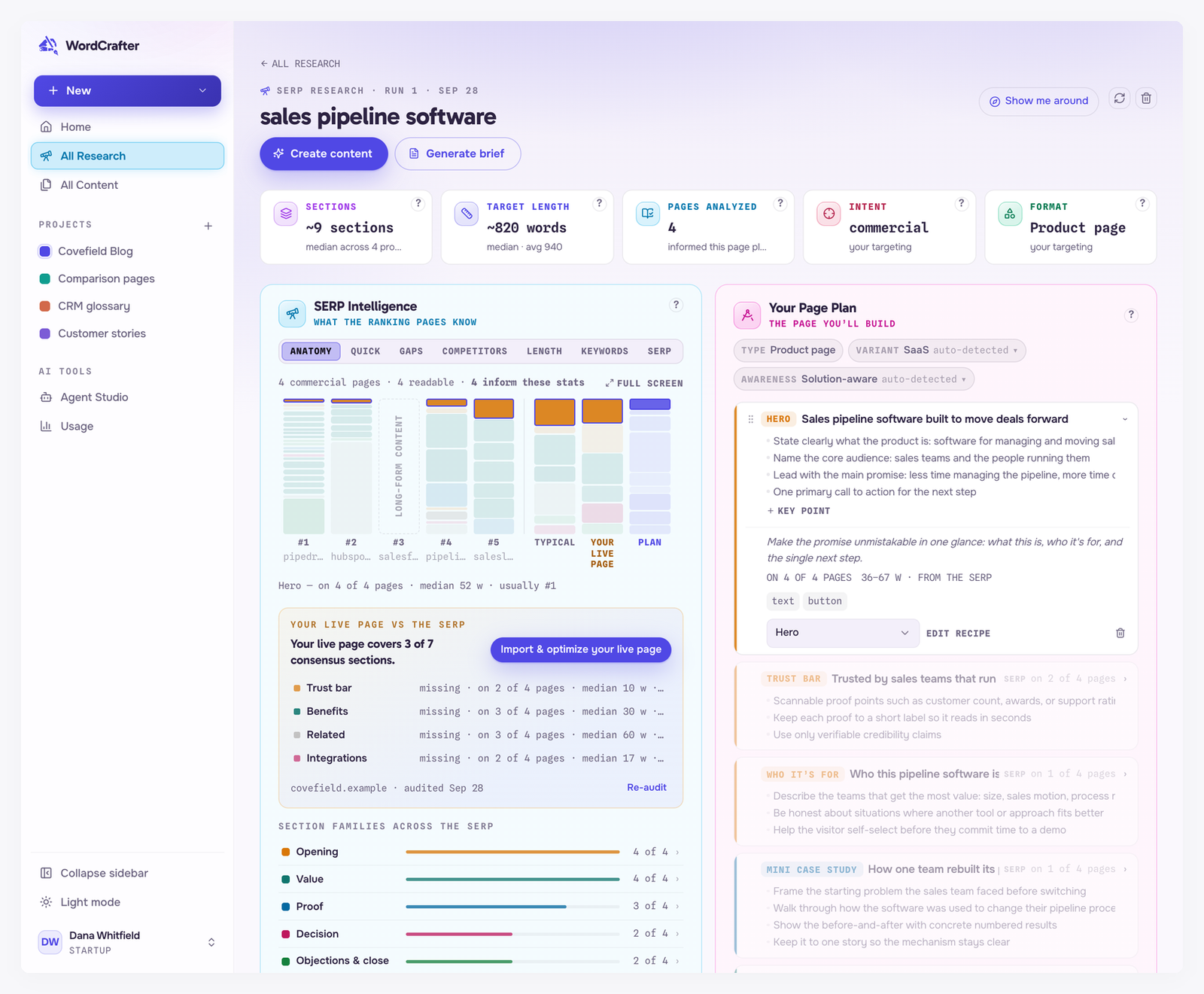
Three chips at the top of the page plan describe the page it is built for.
Type is the format you targeted: product page, service page or landing page. It is set when you pick the targeting and cannot be changed on the page plan.
Variant narrows the type. A product page is SaaS or E-commerce, a service page is B2B or Local, and a landing page is Solution or Comparison. WordCrafter detects it from the SERP, and falls back to the first of the pair when the SERP is ambiguous.
Awareness is how much your reader already knows, inferred from the keyword and the search intent. The first rule that matches wins, in this order: comparison words such as "vs" or "alternative" mean Product-aware; buying words such as "pricing" or "buy", or a transactional intent, mean Most aware; "best" or "top" means Solution-aware; problem words such as "how to" or "why" mean Problem-aware. Anything else starts as Solution-aware. Unaware is never picked for you, so set it yourself if your page is for cold traffic.
Variant says whether its value was auto-detected, a default or set by you. Awareness says whether it was auto-detected or set by you. Click either one to change it.
Section cards
Each card shows the section's family label, its working title and how many ranking pages carry it. Open a card to see its purpose, the evidence behind it and the blocks it suggests. From there you can add a key point, change the section type, open its recipe with Edit recipe, or remove the section.
Section lengths
When at least three ranking pages carry a section, its length target is a band around their median, from 70% to 130% of it. With fewer pages to measure, the target comes from the section's recipe instead. The card says which one you are looking at.
Add what the page plan left out
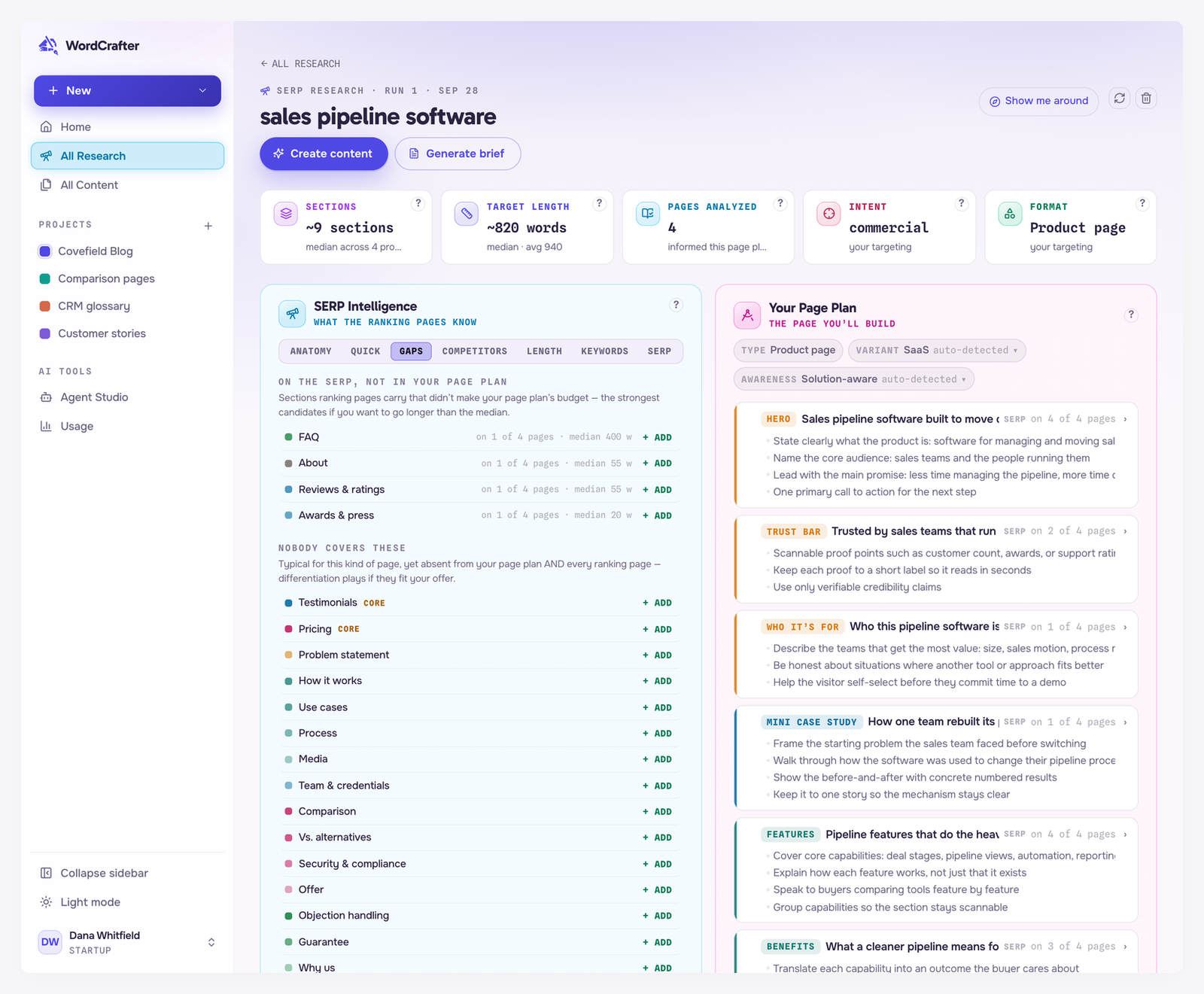
The Gaps tab lists the sections that did not make the page plan, in two groups. Click + Add on any of them to put it in.
On the SERP, not in your page plan lists sections the ranking pages carry that the section count cut, most common first. Start here when you want a longer page than the median.
Nobody covers these lists sections typical for this kind of page that neither your page plan nor any ranking page has. They are differentiation plays, if they fit your offer. CORE marks a near-universal best practice for this kind of page.
Set your own floor with Page Structures
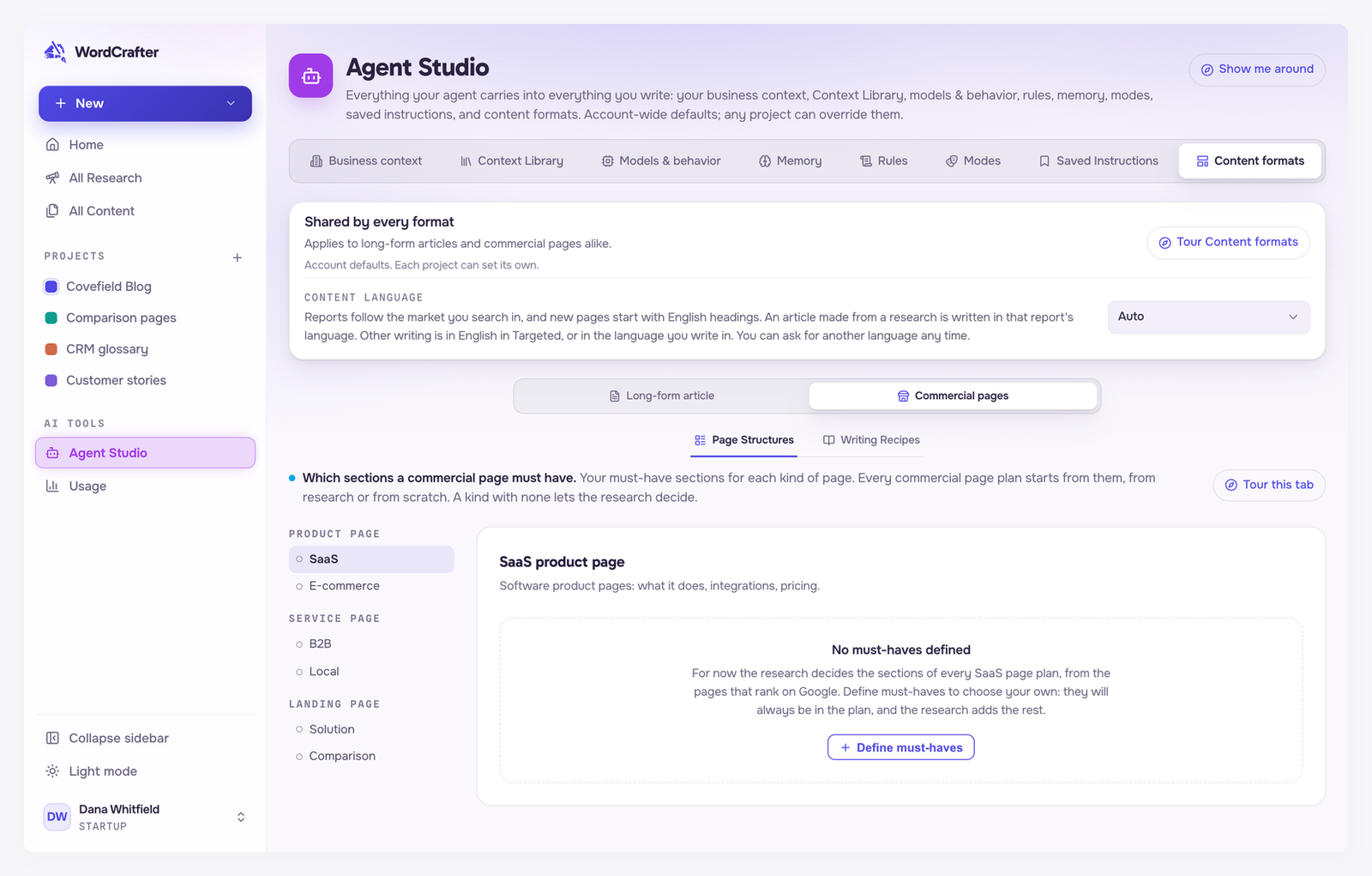
Some sections belong on your page whatever the SERP says. List them in Agent Studio → Content formats → Commercial pages → Page Structures, one set per variant.
Your must-haves become the floor for every page plan of that variant. A variant with nothing defined stays fully SERP-driven, and a commercial page you start from scratch uses WordCrafter's default sections for it. What you set here is the account default, and any project can pin its own version.
Shape each section with Writing Recipes
A recipe tells the writer what one section type is for. There is one for each of the 32 types, in Agent Studio → Content formats → Commercial pages → Writing Recipes. Each recipe sets:
the purpose, shown on section cards;
the structure the section follows;
the suggested blocks, which become the empty blocks of a new page;
a length range, used when the SERP cannot supply one;
Do and Don't rules, plus notes the writer always receives.
A recipe you have not touched tracks the WordCrafter default, so improvements reach it automatically. Edit it and click Save & pin to keep your own version. Recipes work like Page Structures: an account default, with any project able to pin its own.
Section lengths, at the top of Writing Recipes, switches every section between SERP medians, the default, and Recipe ranges, which always uses the recipe's own range.
Most section types are fact-bearing, and the recipe says so. A fact-bearing section only uses what your business context actually contains. Where the context is silent, the section comes back with an [Add …] placeholder instead of an invented claim. Editing a recipe changes what a section covers, never whether it may make things up.

Turn the page plan into a page
Click Create content on the research and pick one of two options.
Empty with page plan opens an empty draft seeded with your page plan: a heading for each section, followed by its suggested blocks, ready for you to write.
Generate with AI builds the same draft, then the agent writes every section from your business context while you watch.
The agent needs to know what you sell. If WordCrafter does not have your business context yet, paste your website's URL in the dialog and it is read before the draft opens. Leave the field empty and the editor asks for your context before the agent writes anything.
Generate brief, next to Create content, turns the same research into a content brief you can hand to a writer.
A finished research is reusable. Create as much content from it as you need without spending another research credit. See how research credits work.