
Pick long-form content at step 2 and the research gives you an outline built from the articles already ranking, with everything it found alongside. Refining that outline is one activity on one screen: the findings on the left, your outline on the right.
The screen
Tiles across the top show the target length, how many pages informed the outline, and the intent and format you picked. SERP Intelligence, on the left, holds the findings. Your Outline, on the right, is the outline you will write from.
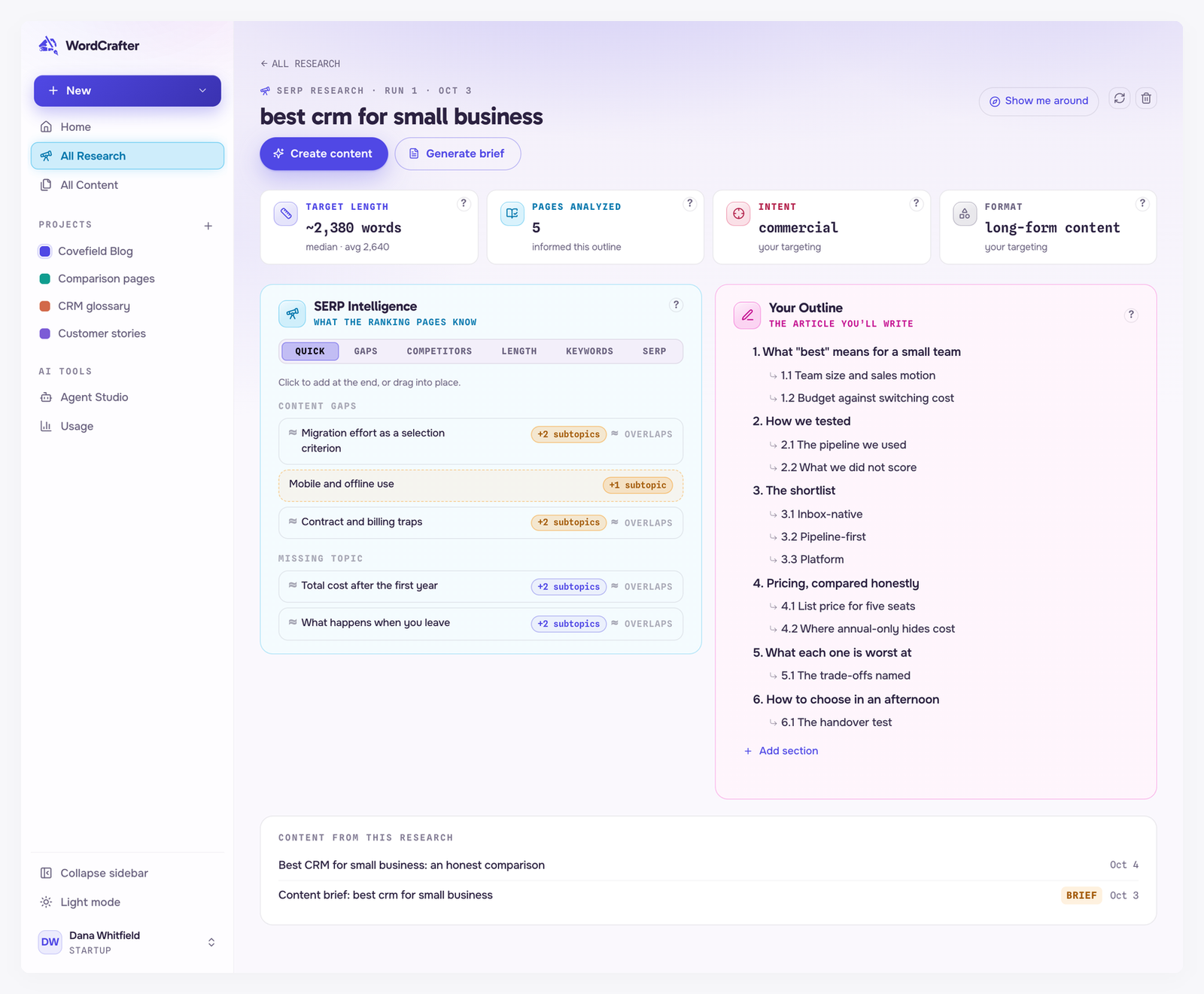
This guide covers the tabs that are specific to articles: Quick, Gaps and Competitors. Length, Keywords and SERP are covered in the complete guide to SERP research.
Quick: the strongest findings first
Quick gathers the best suggestions into short lists. Click a card to add it to the end of your outline, or drag it into place.
Top opportunity is the strongest gap the research found. When there are several, they come one at a time, numbered, and the next appears as you deal with each.
Content gaps are the whitespace: topics relevant to your keyword that neither the recommended outline nor the ranking pages cover. They are where you can differentiate.
Missing topic is a topic several ranking pages cover that the recommended outline left out as a section of its own.
Uncommon on the SERP works the other way round. It points at a section already in your outline that the ranking pages barely cover, and suggests trimming it.
A list only appears when the research found something for it. A card with subtopics says how many, such as +2 subtopics. A check mark means your outline already has that exact section. ≈ Overlaps means a section of your outline already deals with the topic, under a different or broader title. Click the card to find that section and check whether it is enough. Use + Add only to give the topic a section of its own anyway. Added sections and their subsections take your outline's numbering.
Gaps: every gap, subtopic by subtopic
Gaps lists each content gap with its subtopics underneath. + Add all adds a gap together with its subtopics, and each subtopic has its own + Add. Check marks and ≈ Overlaps mean the same as in Quick. On a gap's own row, click its ≈ Overlaps mark to find the section.
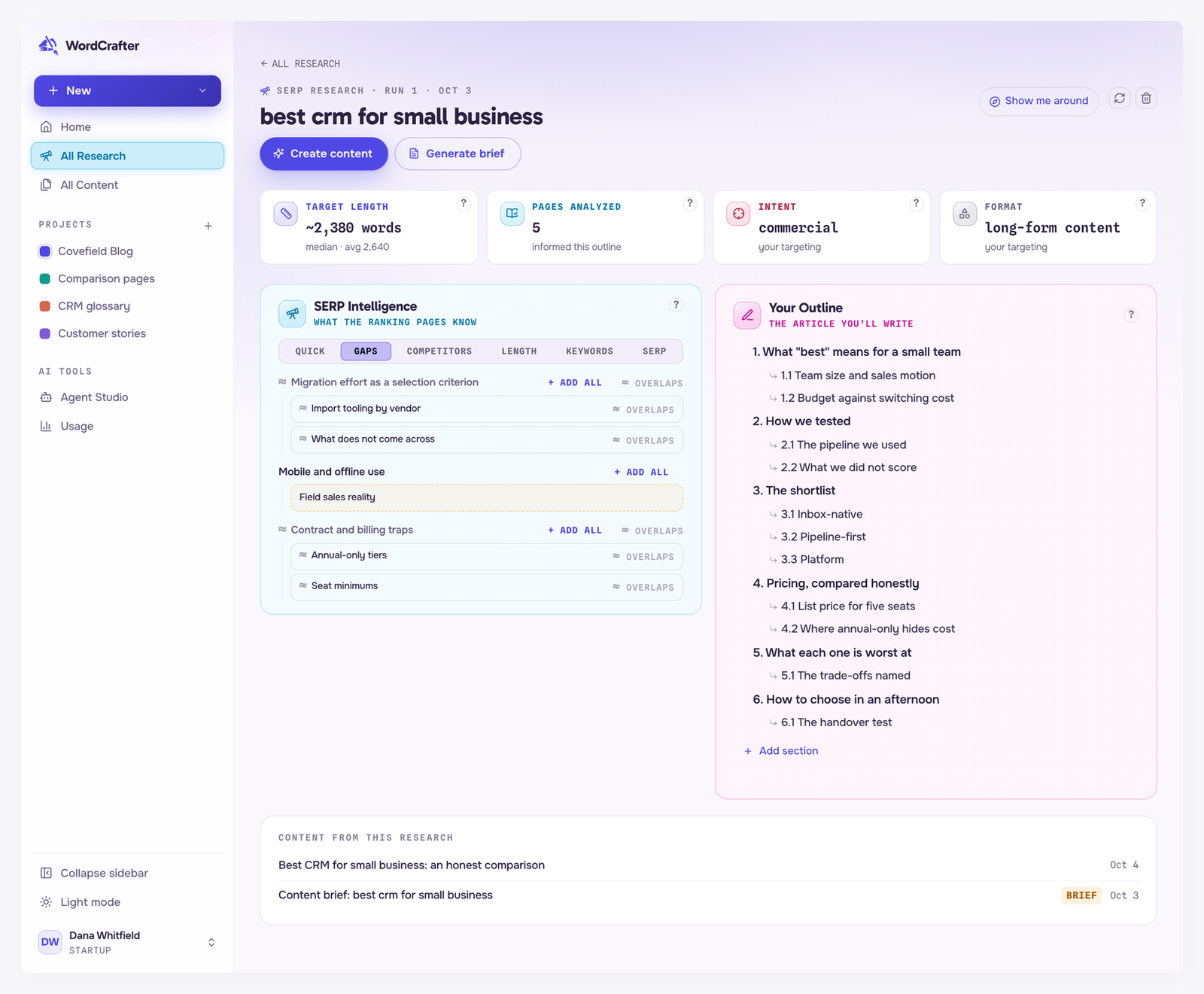
Competitors: borrow from the pages that rank
Competitors lists the ranking pages that match your intent and format, each with the format and intent it was classified as. Expand a page to see its headings, and add any of them to your outline.

Shape your outline
Your outline saves as you go, and a tick confirms each save.
Click a section's title to rename it. Press Escape to cancel.
Drag a section to move it, or press Alt+↑ or Alt+↓ (Option on a Mac).
Tab nests a section under the one above it, and Shift+Tab moves it back out.
Enter adds a new section after the current one.
On a row, Add a subsection adds one beneath it, and remove deletes the section while its subsections move up a level.
Backspace on an empty title removes that section.
Add section, under the outline, adds a new section at the end.
Right after you add, remove or dismiss a card, an Undo link appears for about five seconds. Reset to recommended brings back the outline the research built.
From outline to content
When the outline is ready, click Create content. Start from the outline and write it yourself, or have the agent write from it. Everything you create from the research is listed under Content from this research, and Generate brief turns the same research into a content brief.