
A content brief hands a writer what the research found, on one page they can read without a WordCrafter account. You generate it from a finished research, refine it in the editor, and share it with a link.
Generate a brief
Open a finished research and click Generate brief. WordCrafter creates new content called "Content brief:" followed by your keyword, in the research's project (or your default project if the research has none), and opens it in the editor. When the research report is written in Spanish, French, German, Portuguese, Italian or Dutch, the brief is written in that language too, title included (in Spanish, "Brief de contenido:"). Every other research gets an English brief, including research run before reports followed a language.
The research has to be complete first. Generating a brief spends no research credit and does not count against your AI usage allowance.
What a brief contains
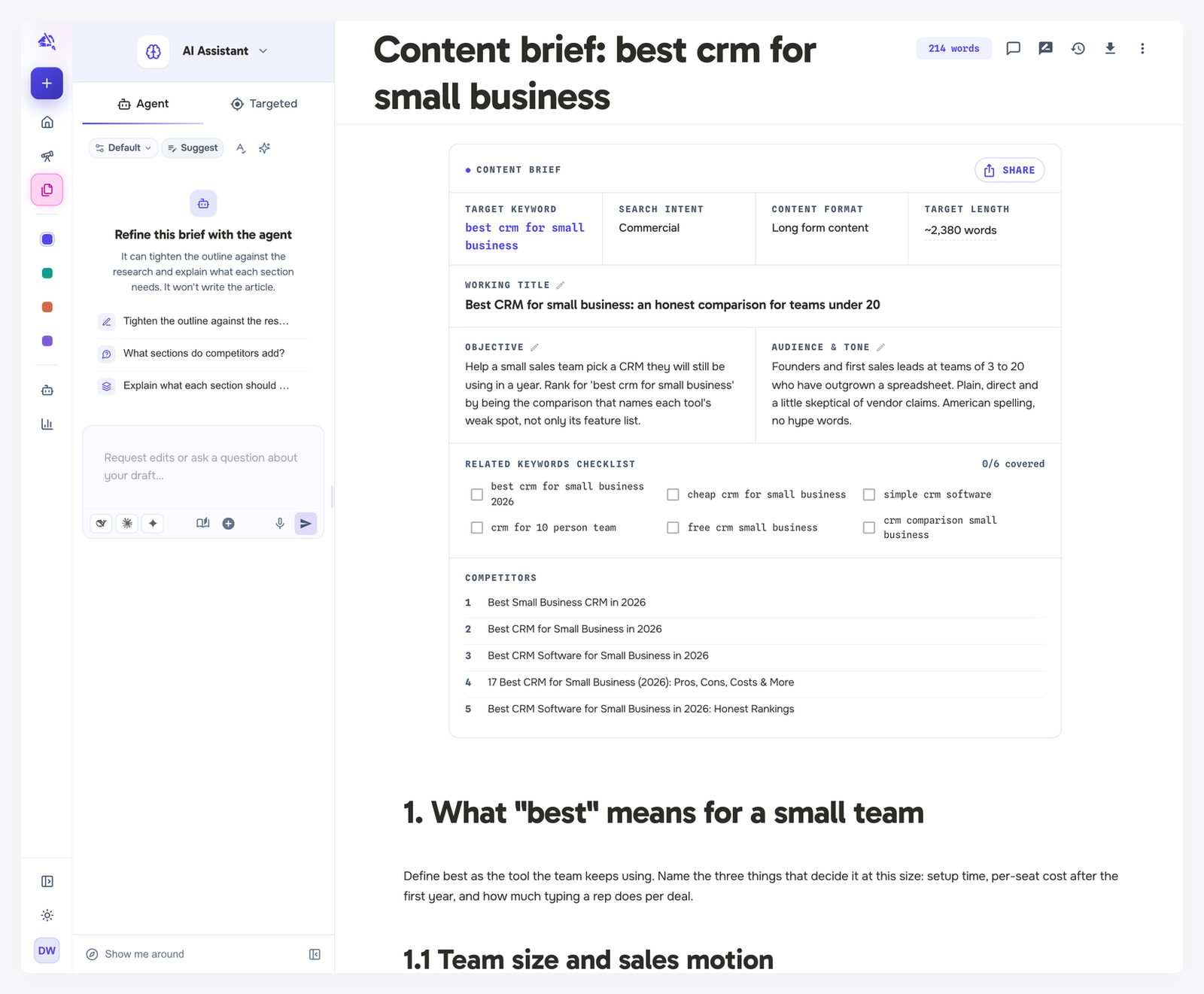
The top of a brief is the Content brief panel.
Target keyword, Search intent and Content format come from the research.
Target length starts from the research when it has a word target. Click it to set your own. Update brief resets it to the research's figure.
Working title, Objective and Audience & tone are written by AI when the brief is generated. Click the pencil next to each one to edit it.
Related keywords checklist lists related keywords from the research. Tick each keyword as the writing covers it, and the counter shows how many are ticked.
Competitors lists the ranking pages from the research.
Below the brief panel sits the outline or page plan. For long-form research, that is the outline, with a short note of writing guidance under each top-level section. For commercial research, each section of the page plan gets its purpose, target length, key points and the writing guidance from its recipe, and the first section of each type also carries evidence from the ranking pages. Either way it is ordinary content, so you edit it like any other draft in the editor.
Refine it with the agent
On a brief, the AI Assistant offers to refine it with you. The agent can tighten the outline against the research and explain what each section needs. It does not write the article.
Keep the brief up to date
When the research is refreshed after you generated the brief, a banner says Research updated since this brief was generated. Click Update brief to pull the latest data from the research into the brief panel: keyword, intent, format, target length, related keywords and competitors.
An update never changes the working title, objective or audience and tone, and keywords you ticked stay ticked. It does reset the target length to the research's figure, so set your own target again after updating.
Share a brief
Click Share on the brief panel to create a public link. Anyone with the link can read the brief, no account needed. The shared page shows the brief panel and the outline with its guidance, laid out for reading.
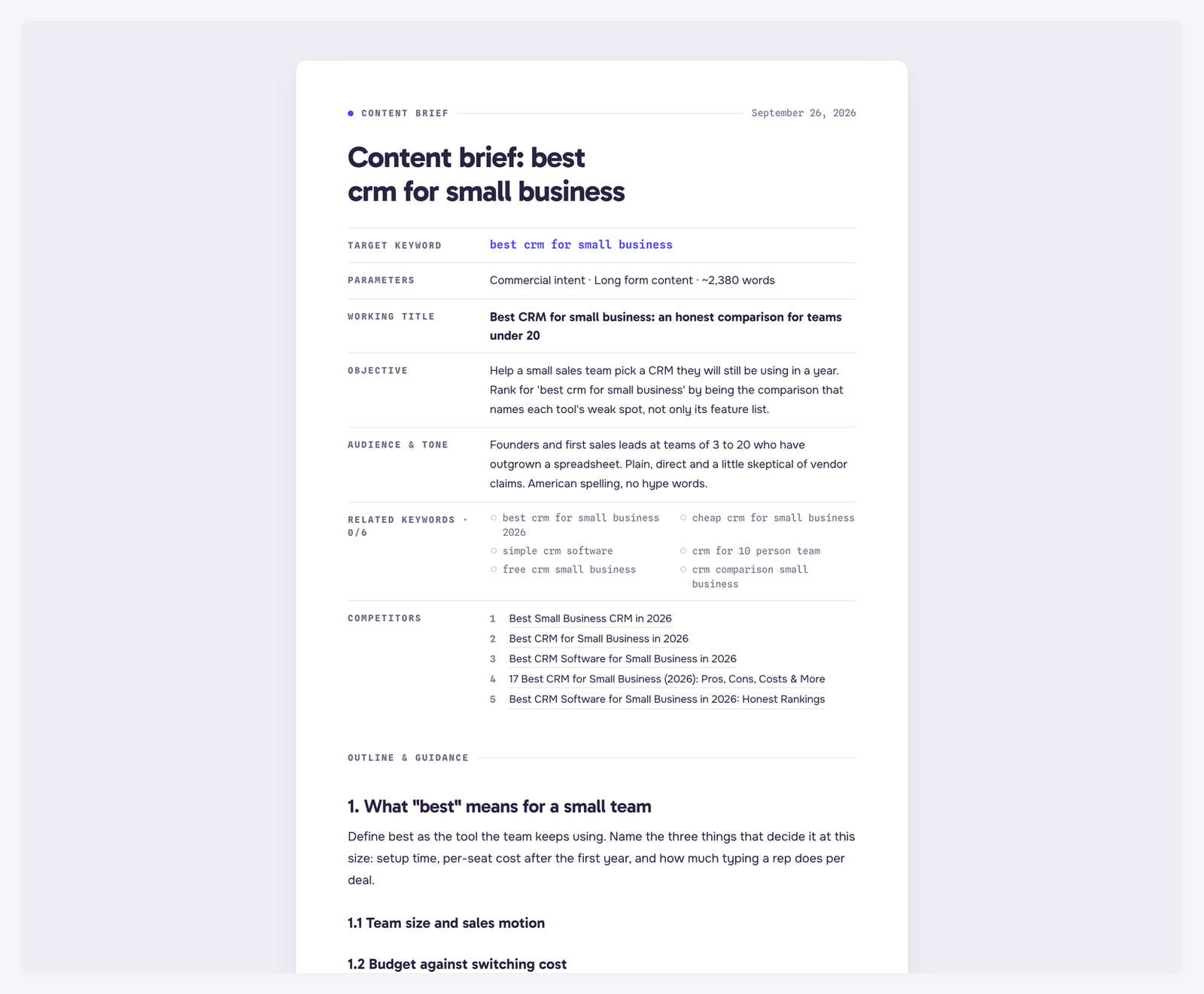
Rotate link swaps the link for a new one, and revoking removes it. Either way the old link stops working, and anyone who opens it is told the link may have been rotated or revoked.
A share link is public. Anyone who has it can read the brief until you rotate or revoke the link.