
SERP research reads the first page of Google for your keyword and tells you what it takes to rank there. You get the evidence on one side and the outline or page plan you will write from on the other. One research credit buys a research, and you can create as many pieces of content from it as you like.
What happens during a run
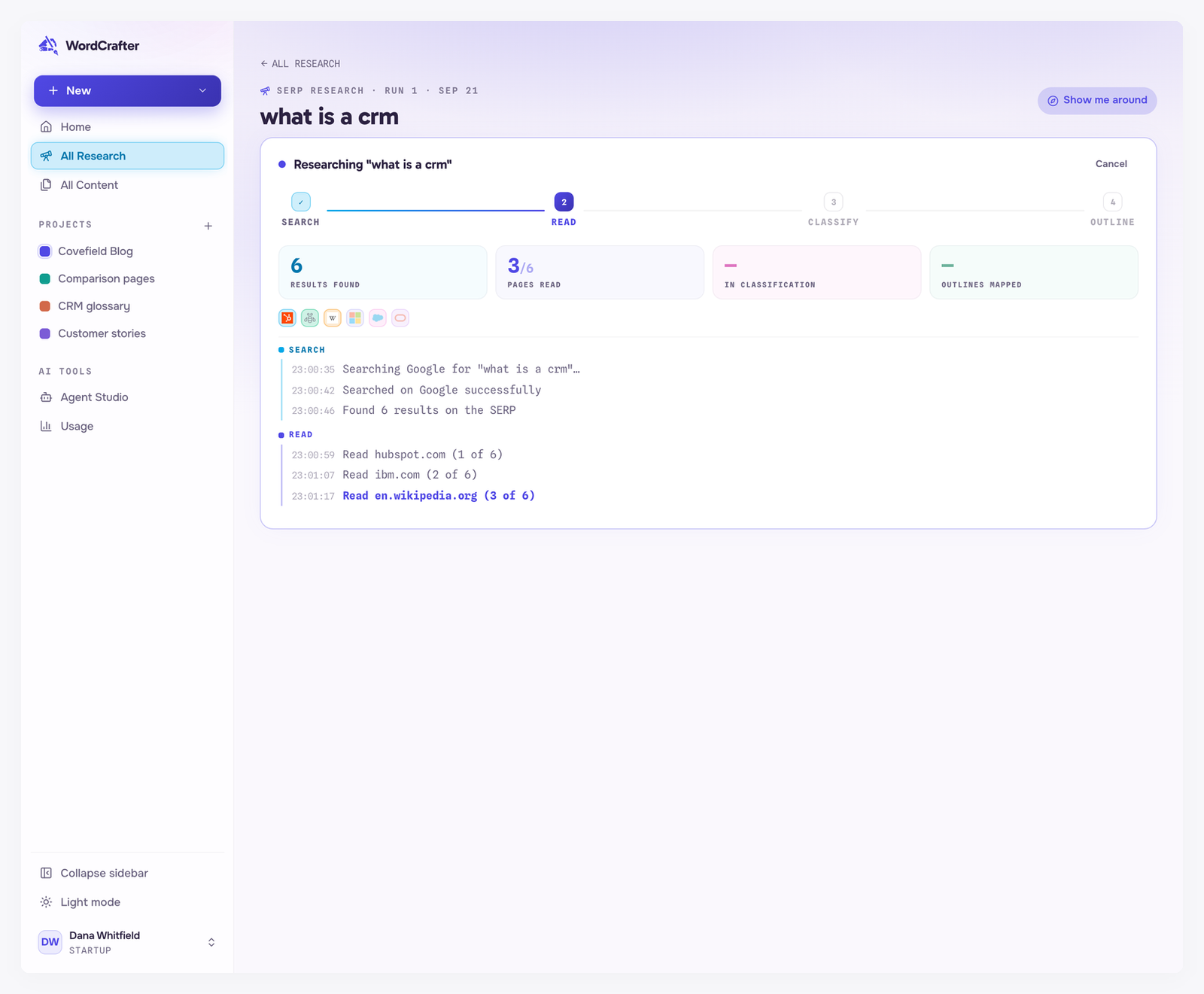
A run moves through four stages, shown across the top of the run while it works:
Search finds the results on the first page of Google.
Read fetches and reads each ranking page.
Classify labels each page's search intent and format.
Outline maps the pages into your outline. On commercial research this stage is called Structure, and it maps typed page sections instead.
Counters show the results found, pages read, pages in classification and outlines mapped, and a trail below them lists each step as it happens. A full run usually takes a few minutes. It is safe to leave, since the run continues in the background.
Between Classify and the outline, the run stops once to ask you for a search intent and a format. See choosing a search intent and format.
The results screen
When the run finishes, tiles across the top summarize it: target length, the number of pages analyzed, and the intent and format you picked. Commercial research also shows its section count. Below the tiles the screen splits in two.
SERP Intelligence, on the left, is what the ranking pages know.
Your Outline, on the right, is the outline you will write from. On commercial research it is Your Page Plan instead.
SERP Intelligence has six tabs: Quick, Gaps, Competitors, Length, Keywords and SERP. Commercial research adds Anatomy. The first three work differently for articles and for commercial pages, so they have their own guides: research for long-form content and research for commercial pages. The rest of this guide covers the tabs that work the same for both.
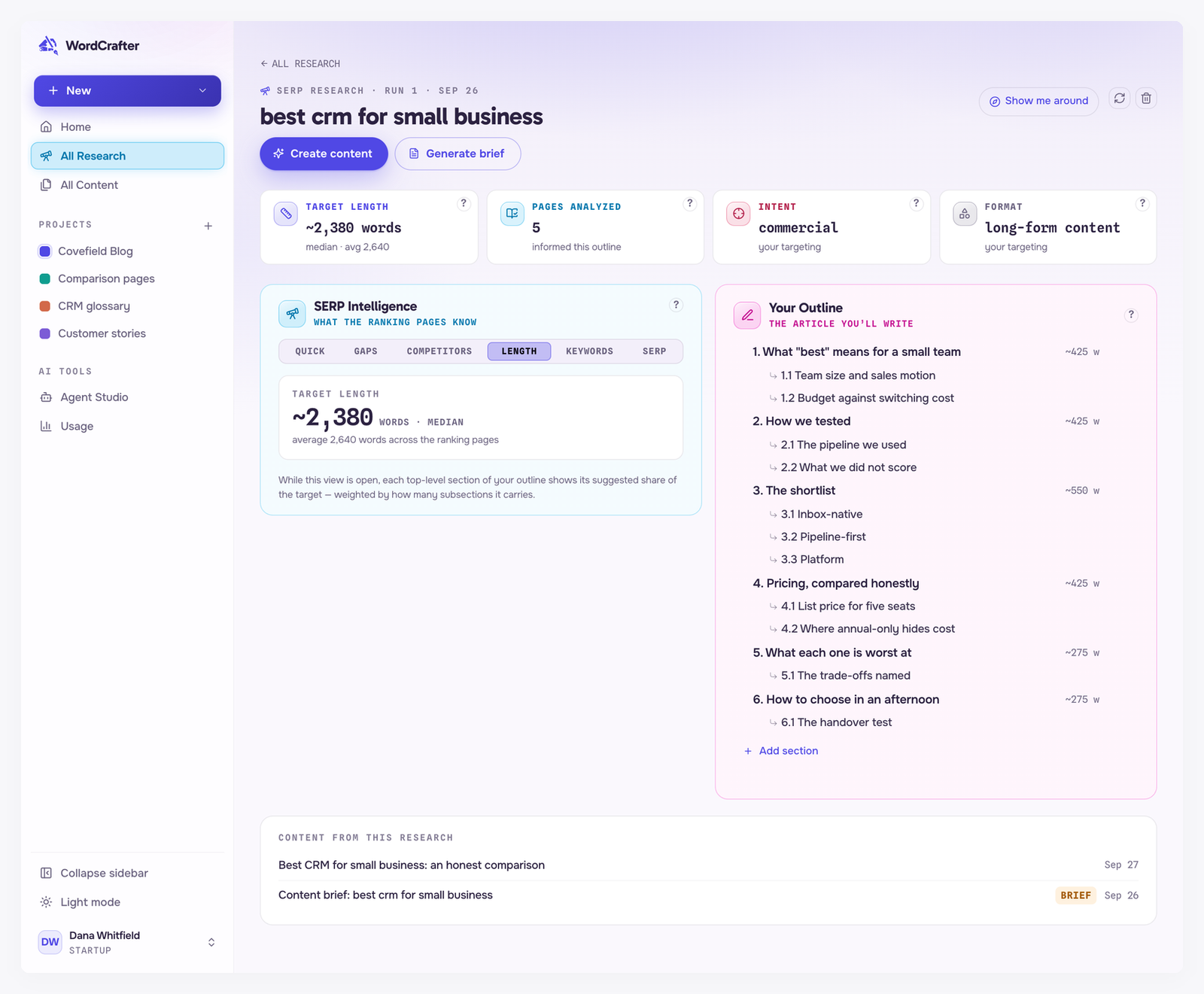
Length
Length gives your target: the median word count of the ranking pages, with their average beside it.
While the tab is open, each top-level section of your outline shows its suggested share of the target, weighted by how many subheadings it carries. Use it to see where the words should go before you write them.
Keywords
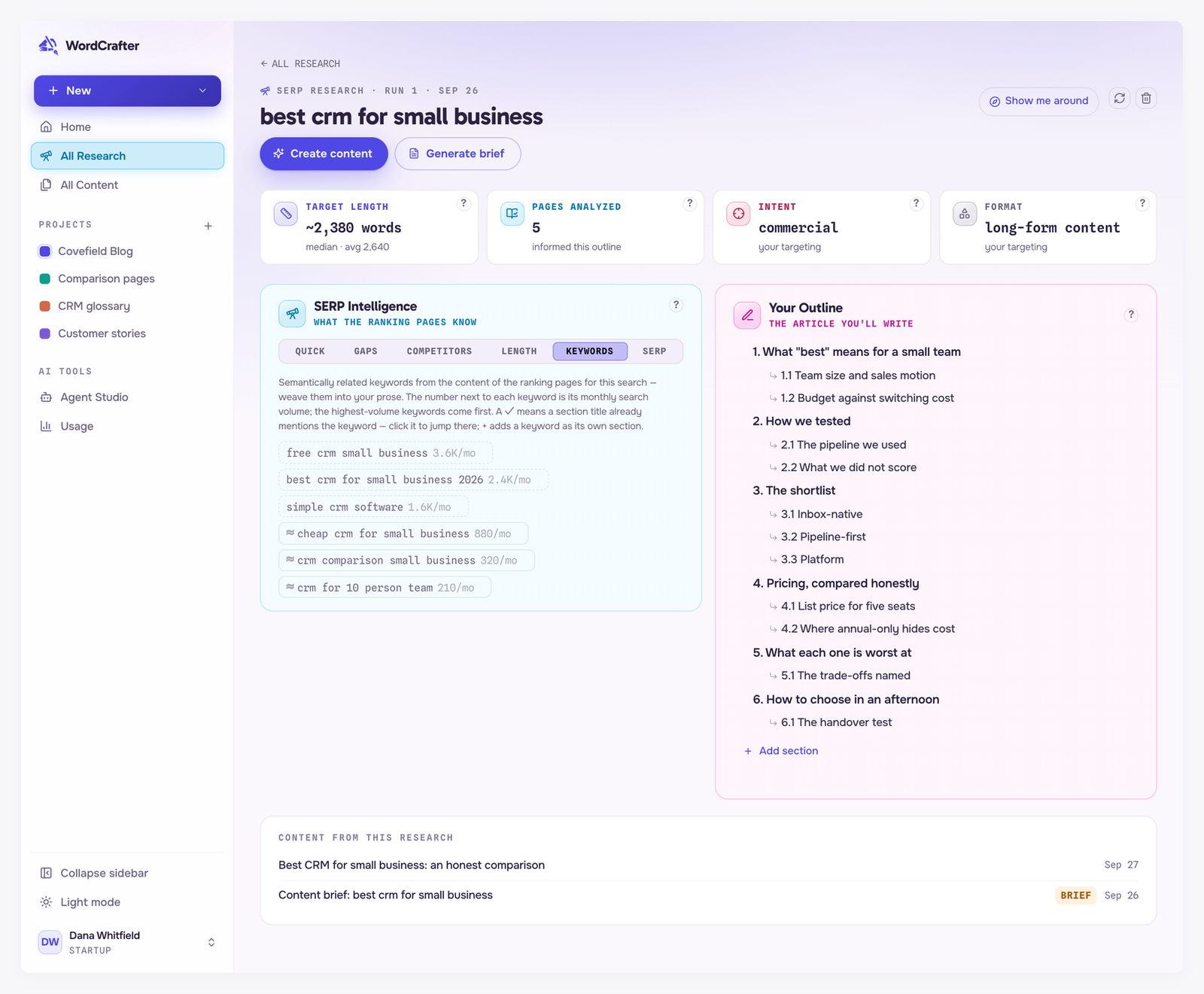
Keywords lists semantically related keywords from the content of the ranking pages, to weave into your writing. When search volumes are available, the number next to each keyword is its monthly search volume, and the biggest ones come first.
A check mark means a section title already mentions the keyword. Click the keyword to jump to that section.
+ adds the keyword to your outline as its own section.
A keyword marked with ≈ overlaps a section of your outline: that section already deals with it, under a different or broader title. Click it to find that section, or use + to give it its own section anyway.
SERP
SERP shows the results page as Google served it: every ranking page in order, with the intent and format it was classified as, and the search features at the positions where they appeared.
The features it can show include a Featured snippet, People also ask, AI Overviews, Top stories, Related searches, Discussions and forums, Local results, a Knowledge panel, Popular products, an Image pack and Sponsored results. A question your outline already has as a section is checked, and ≈ marks a question that overlaps a section.
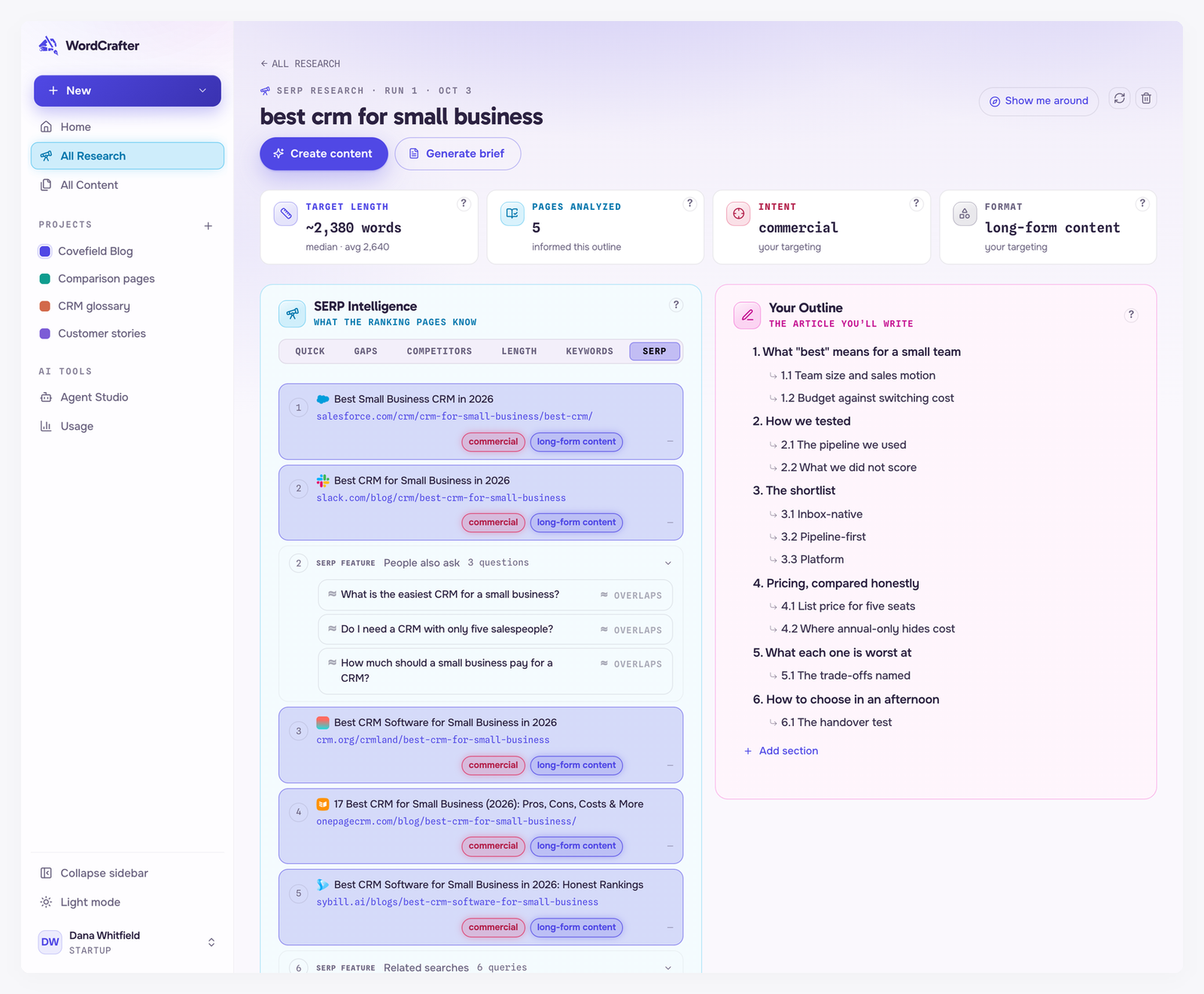
A result marked Could not be read blocked automated readers or had no readable text, so it did not join the analysis. See research FAQs.
After the research
Create content starts new content from your outline or page plan. Everything created from the research is listed under Content from this research.
Generate brief turns the research into a brief you can share with a writer. See content briefs.
To bring a research up to date later, refresh it. See managing your research.