
Rules and modes both shape what the agent does, in different ways. A rule is standing guidance the agent follows across your drafts: American spelling, no unsourced statistics, one call to action per draft. A mode is a way of working you pick for a task, like brainstorming angles without touching the draft, or copy editing through suggestions.
Rules
Open Agent Studio → Rules. Each rule is a card showing its name, its badges and a preview of its text. The switch on the right turns a rule off without deleting it, and you can drag cards to reorder them.
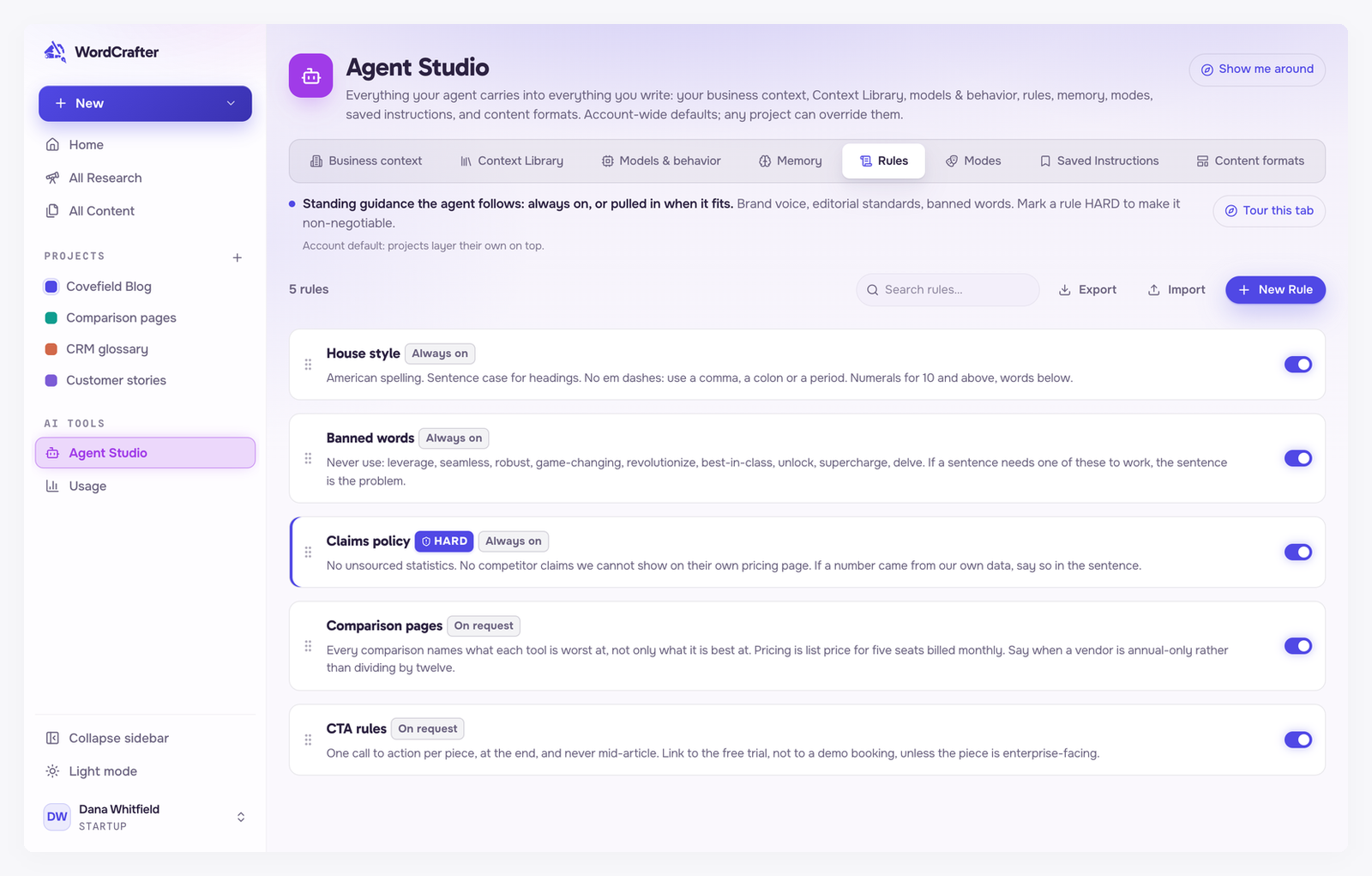
Create a rule
Click New Rule and fill in:
Name and Description. The description is a short summary that identifies the rule.
Scope, when you open Rules from a project or a draft: Account-wide, This project or This draft. When rules conflict, the more specific one wins.
Type, which decides what the rule holds (see below).
Activation: Always on rules are honored in every run. On request rules are pulled in only when relevant, which is why a clear name and description matter for them. Terminology and Snippet rules apply on every agent run, whatever their activation.
Hard constraint, covered next.
HARD rules
Turn on Hard constraint for anything non-negotiable. A HARD rule is always included, whatever its activation, and the writer is told never to override it. A more specific rule cannot override it either.
Because a HARD rule is meant to outrank your own requests, keep the HARD list short. If you find yourself asking the agent to break a rule for one draft, that rule probably should not be HARD.
Three types of rule
Guidance. Prose the agent follows, such as a description of your house style.
Terminology. Pairs of a banned term and the term to use instead. After the agent edits, any banned term in the new text is flagged as a one-click suggestion. Tick Flag only to be warned without a replacement. Matches inside URLs, or in the exceptions you list, are skipped.
Snippet. A trigger phrase and the exact text it should become, such as a legal disclaimer. After the agent edits, a matched trigger is flagged as a one-click suggestion that expands to your text.
Export and import
Export copies all your rules as Markdown. Import does the reverse: paste Markdown, and each ## heading becomes a rule. It is an easy way to bring over an existing style guide.
Modes
A mode changes the agent's persona, the tools it can use, its models, and whether it edits your draft. Pick one from the menu at the top of the Agent tab in the AI Assistant. Default is where the agent starts.
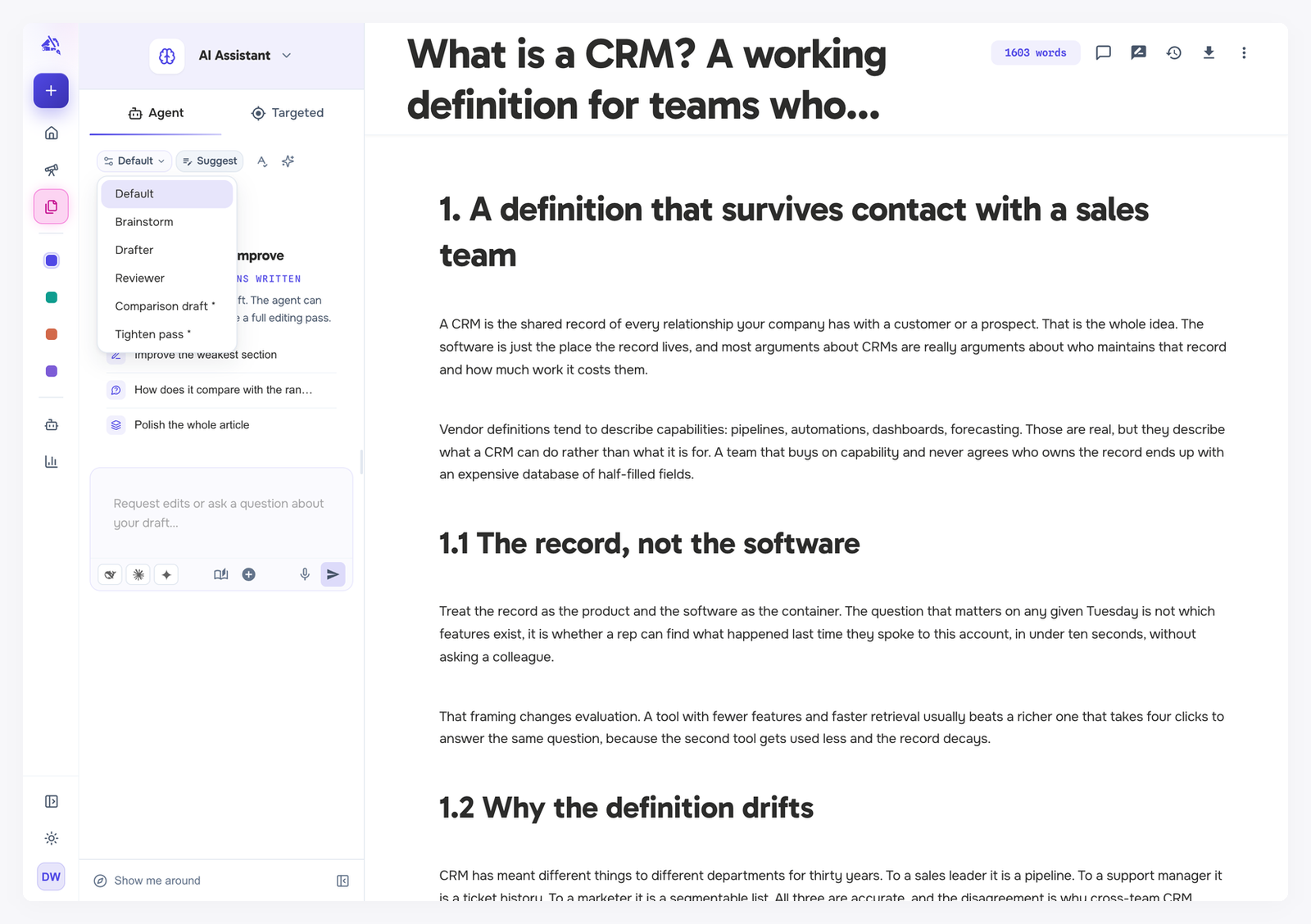
The four built-in modes
Default is the all-rounder. It has every tool and takes on anything you ask, from a quick question to a whole new section.
Brainstorm gives you ideas, angles, outlines and facts with their sources, all in the chat. It never touches the draft. Ask it to change something and it tells you exactly what to change and which mode will do it.
Drafter writes new prose in your voice and tightens what is already there, without changing what you meant.
Reviewer checks SEO, readability, your rules and the facts, and gives you a prioritized list of fixes. It never edits. Ask about one thing, such as whether the draft follows your rules, and it checks just that.
The built-in modes never choose Suggest or Apply for you. Switching to one sets the chip next to the mode menu back to your default, the project's if it has one, and Default and Drafter then edit the way the chip says. A mode you create can instead be fixed to always suggest or always apply. See Suggestions and track changes.

The badges on each card tell you what a mode can do at a glance:
Tool count, such as 4/7 tools.
Read-only: the mode cannot edit the draft.
Follows Suggest/Apply: its edits reach your draft the way the chip in the Agent tab says.
Suggests changes or Applies directly: a mode you created with a fixed edit strategy.
Replaces persona: the mode swaps out the agent's usual persona instead of adding to it.
Built-in modes are locked, so you cannot edit or delete them. To get a variation, create your own mode with the settings you want.
Create your own mode
Click New Mode:
Name and Description.
Filed under: Account-wide or This project. Filing is only for organization. A mode stays selectable everywhere.
Persona: describe who the agent should be, for example "You write like a trade journalist: short, concrete sentences." Choose Add to default to layer it on top of the agent's usual persona, or Replace persona for a full override. Editing mechanics and safety are kept either way.
Custom instructions (optional): added to your message whenever the mode is in use.
Tools the agent can use: Content read, Content edit, Research, Analysis, Planning, Knowledge and Memory. Turn off Content edit for a mode that should only advise.
Models & thinking: pin a thinker, writer or image model, and an edit strategy (Suggest changes or Apply directly), or leave them on your defaults.