
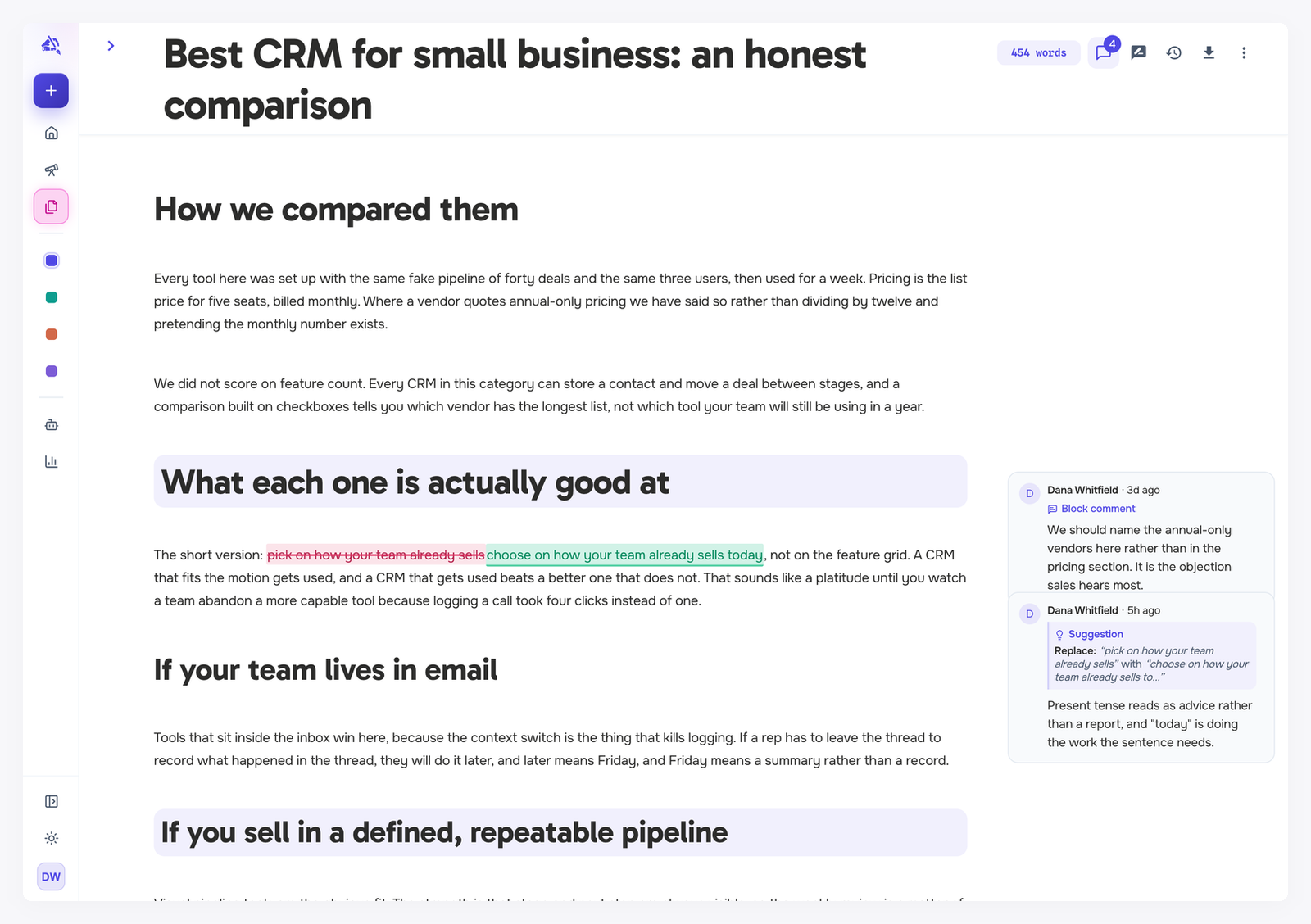
A suggestion is an edit that waits for your approval. Removed text shows in red with a line through it, and new text shows in green, until you accept or reject the change.
Where suggestions come from
The agent, when the chip at the top of the Agent tab is set to Suggest.
The Targeted tab, when Edit strategy is set to Suggest changes.
Your rules. After the agent edits, a banned term or a matched snippet trigger is flagged as a one-click suggestion. See Rules and modes.
You, with Suggesting on (below).
Suggest or apply is a choice per tool, and you can change it at any time. Suggestions suit work you want to check line by line. Applying directly is faster when you trust the change, and undo and Version history are there if you change your mind.
Accept or reject
One at a time
On the canvas: hover a suggestion and click Accept or Reject on the small bar that appears.
In the comments column: each suggestion also appears as a card, with what it replaces and why. Accept or reject it there.
All at once
When a draft has two or more pending suggestions, a review bar sits at the bottom of the screen.
Use the arrows to jump to the previous or next suggestion. The bar shows which one you are on, such as 2/5.
Accept all (Shift + Cmd/Ctrl + Enter) or Reject all (Shift + Cmd/Ctrl + Backspace). The bar asks you to confirm, for example Accept all 5?
Before accepting all, WordCrafter saves a version in Version history, so you can go back to the draft as it was.
Suggesting
To make your own edits reviewable before they count, turn on Suggesting with its icon in the top bar. While it is on, what you type and delete shows up as suggestions instead of changing the text. Click the icon again to turn it off.
Good to know
Restoring an older version drops pending suggestions as if they were rejected. You can still see them in that version's preview.
Accepted suggestions are part of a block's history. Open View history on the block to see when it changed in its Block history.