
Content in the editor is made of blocks. A paragraph is a block, so is a heading, a list, an image or a table. You can change a block's type, move it, duplicate it or delete it without touching the blocks around it.
The formatting toolbar
Select text, or type / in a block, to bring up the toolbar above it.
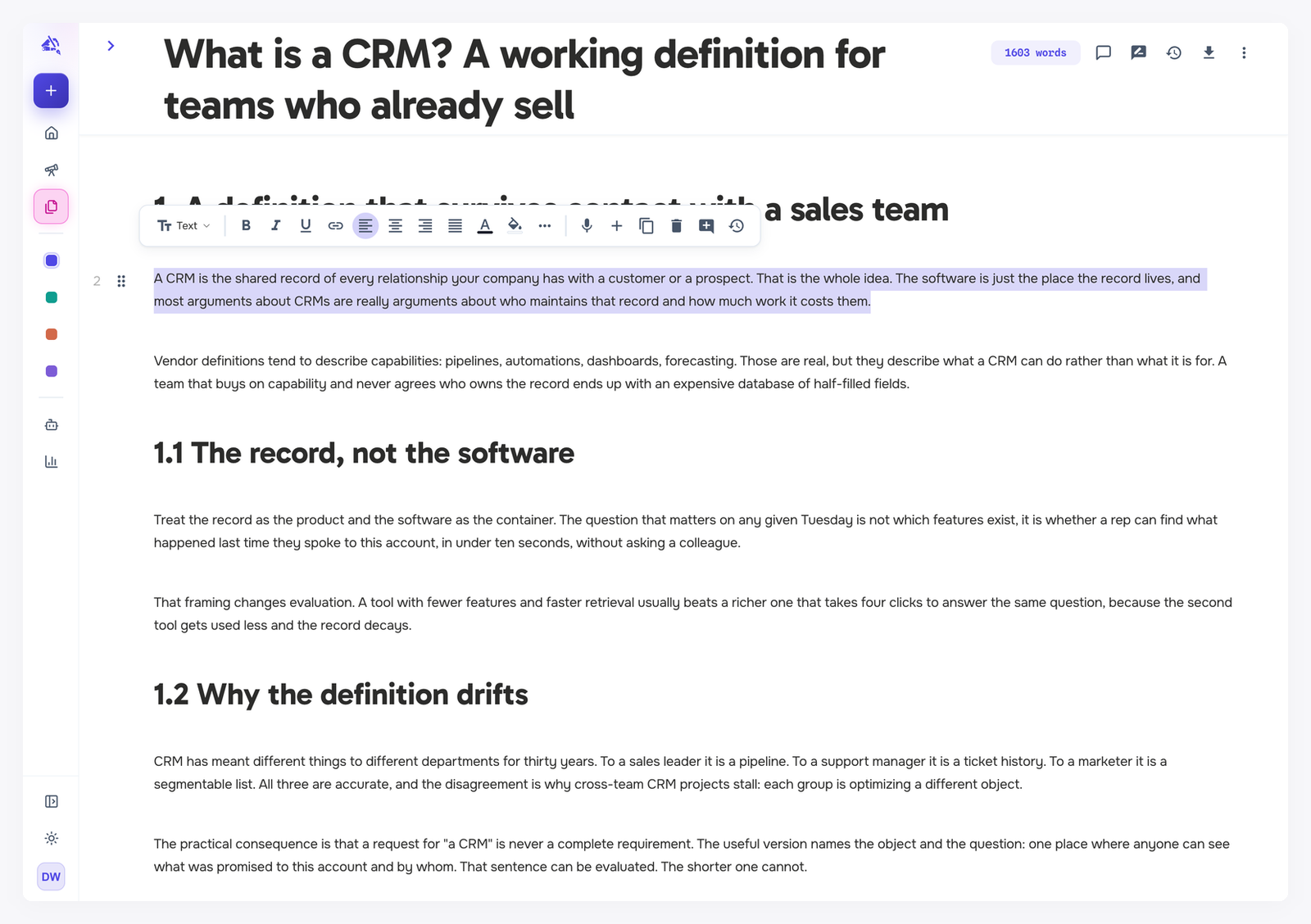
From left to right:
Block type, to turn the block into another type (see the list below).
Bold, Italic, Underline and Link. Select text first to add a link.
Alignment: left, center, right or justified.
Text color and Background color.
More formatting: strikethrough, subscript and superscript.
Voice input, to dictate into the block. It is always free.
Add block, Duplicate and Delete.
Add a comment on the block.
View history, which opens Block history: the earlier changes to this one block.
Drag the handle to the left of a block to move it.
Keyboard shortcuts
Cmd/Ctrl + B, I, U: bold, italic, underline.
Cmd/Ctrl + Shift + C: text color. Cmd/Ctrl + Shift + H: background color.
In a text block, type - (a hyphen and a space) to start a bulleted list, or 1. to start a numbered list.
The full list is under More Options → Keyboard Shortcuts.
Block types
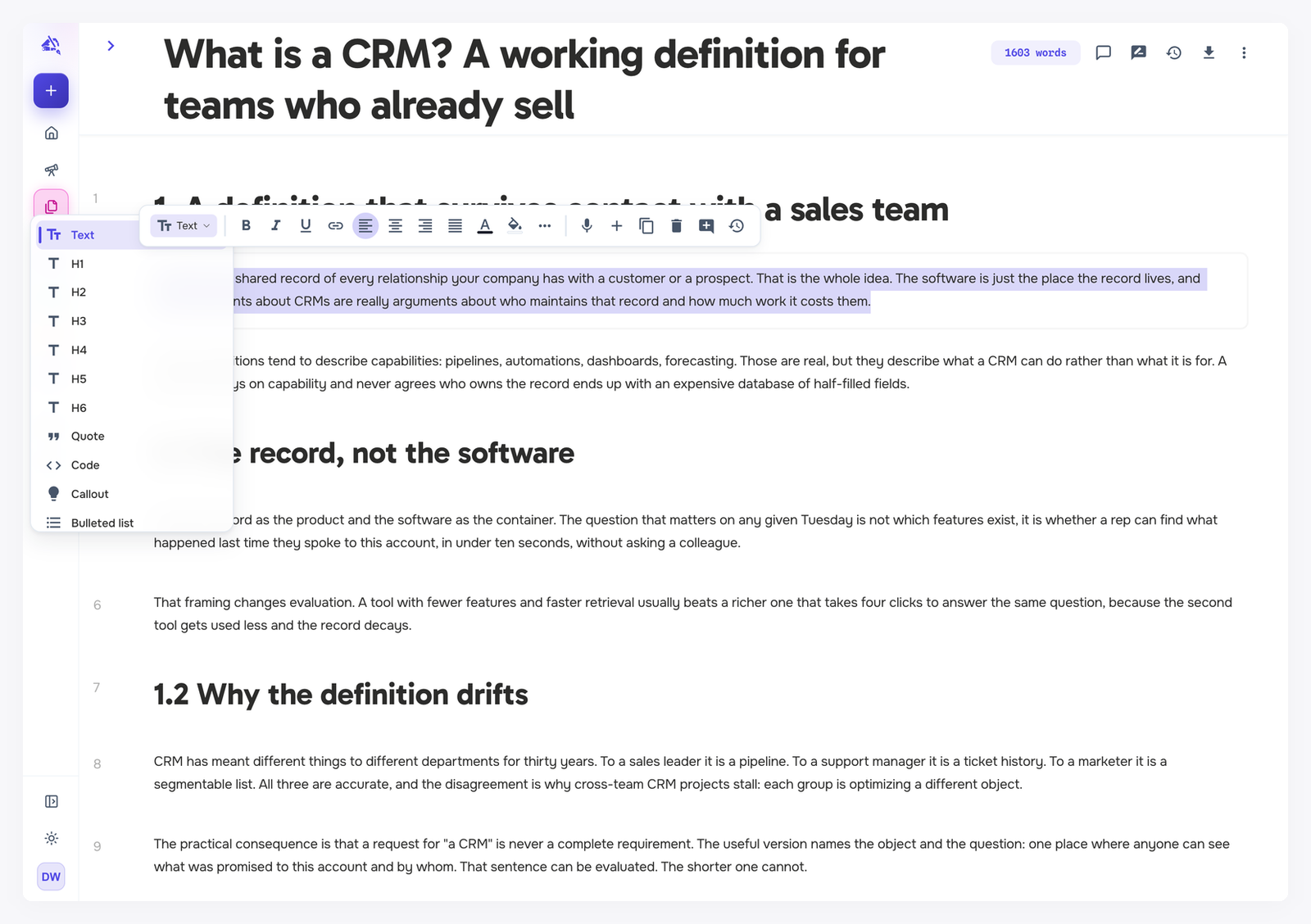
Text
Text, the plain paragraph.
H1 to H6, headings. Headings build the Outline view in the sidebar.
Quote, Code and Callout, for a highlighted note.
Lists
Bulleted list, Numbered list and To-do list.
Toggle list, whose content opens and closes under a header.
Toggle H1 to Toggle H6, headings that open and close the content under them.
Layout
Divider, a horizontal line.
2 columns to 5 columns, side-by-side content.
Table.
Button, with its own text and link.
Breadcrumb, a trail of links.
Table of contents, built automatically from your headings.
Media
Image: generate one with AI, or upload a PNG, JPG, GIF or WebP up to 10 MB.
Video: paste a YouTube or Vimeo link.
Audio: upload an MP3, WAV, OGG, WebM, M4A or AAC file up to 25 MB.
Changing a block to a different kind of media asks first, because the current image, video, audio or text is removed.
Pasting from Word or Google Docs
Paste several paragraphs and WordCrafter splits them into blocks: paragraphs become text blocks, and headings, lists, tables, images and code come through as their own blocks. Bold, italic, underline, strikethrough and links are kept.
A single paragraph pastes into the block you are in.
Sections on product, service and landing pages
Commercial pages are built from sections, such as a hero, a feature list, pricing or an FAQ. Each section starts at a heading and includes everything under it. Turn on Section frames in the top bar to see them.
With Section frames on, each section is framed on the canvas with its type at the top. Hover the type to:
Drag the whole section to a new position.
Add a section below, from a list of types suggested for this page.
Edit the recipe that says how this section type is written.
Delete the section.
When you add a heading of your own, its frame asks What kind of section is this? Pick a type, then choose what happens to the blocks under the heading: Keep what's below, Add the recipe's slots (empty placeholders to fill, before your content), or Start clean, which deletes what is below the heading and adds the slots.
When the agent needs a fact
If a section is about to be written and your business context is missing something it needs, such as a price, you are asked first. When the Agent is writing, the question appears in the Agent panel. When the Targeted tab writes a single section (or you click Retry on a section's notice), the question appears on the canvas, right above that section. For details like prices, guarantees, offers, integrations, security, policies, your team or your location, you are asked even when your business context seems to have them: what it found is shown under Found in your business context and already filled in as the answer, so you can check it first. You can:
Use this to write with what was found. If you fix anything that is wrong or missing first, the button reads Write with this.
Paste the answer, exact names and numbers work best.
Paste a link and click Read it to pull the facts from a page.
Skip, and the section is written with [Add …] placeholders for you to fill in.
Stop asking this run (Agent only), and the agent finishes without more questions. It still does not invent facts: anything missing is left as an [Add …] placeholder.
Cancel (a single section on the canvas only), and nothing is written.
While the Agent is writing, if you do not answer within five minutes, it writes the section with [Add …] placeholders and the question closes. What was found is never used unless you choose it.
When the agent writes every section, it asks these questions one at a time, as it reaches each section. When the Targeted tab writes several sections at once, the questions come first, in one list. Where your business context has something that looks like the answer, Fill in copies it into that answer box for you to check before you write.
How sections are planned from research is covered in Research for commercial pages.