
WordCrafter saves versions of your draft automatically: while you write, when you open it, and when an agent run starts, continues or finishes. If a change goes wrong, you can see exactly what the draft looked like before and go back to it.
Open Version history from its clock icon in the top bar.
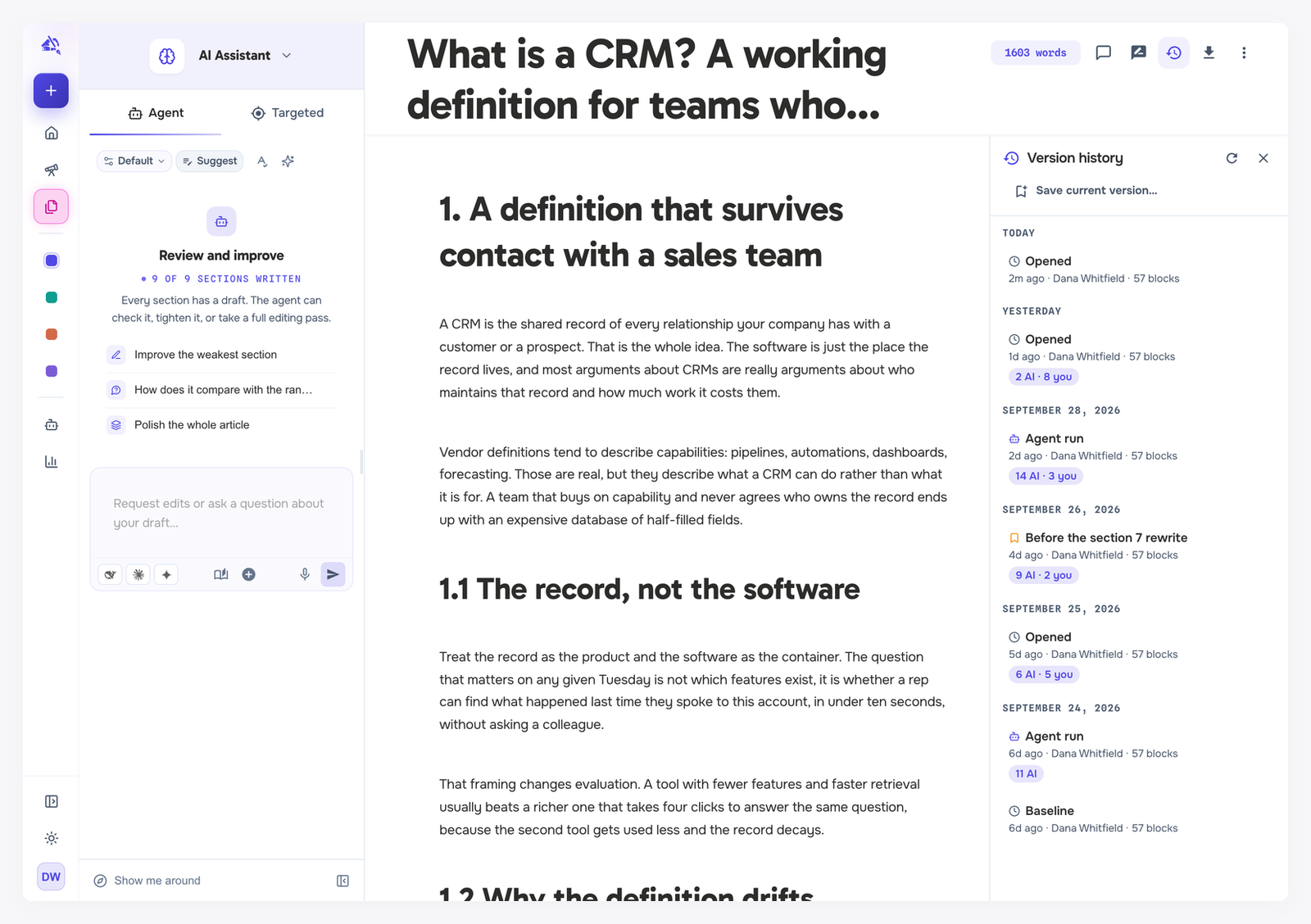
Read the timeline
Versions are grouped by day, newest first. Each one shows what created it, who, when, and how many blocks the draft had. A chip such as 3 AI · 2 you shows how many of its changes came from the AI and how many from you.
Autosave: saved while you work.
Opened: saved when you open the draft.
Agent run: saved when the agent starts a run, when you click Continue after it pauses, and when it finishes, you stop it, or it stops with an error.
Before restore, Before accept-all and Before undo: versions saved just before restoring, accepting all suggestions or undoing, so you can always get back.
Restored (or Restored to a date): the draft after a restore.
Baseline: the first version of the draft.
A version with a bookmark is one you saved and named.
Save a version yourself
Before a big rewrite, click Save current version…, name it, and click Save. Hover any version in the timeline to Rename it, or to pin it with the pin icon so it is kept for good.
Look at an older version
Click a version to see it in place of your draft. Nothing changes until you restore it. From the preview you can:
Compare against the previous version, the current version or any other version, to see what was added and removed. Choose Nothing (show this version in full) to see it whole.
Click Back to current to return to your draft.
Restore a version
Open the version and click Restore this version.
Read the summary of what will change, including whether the title reverts.
Click Restore.
A Before restore version is saved first, so you can return to the state you had.
Pending suggestions are dropped when you restore, as if you had rejected them. They stay visible in that version's preview. You cannot restore while the agent is writing: versioning is paused until the run ends.
One block's history
To see how a single block changed, select it and click View history on the formatting toolbar. Block history lists each change to that block, such as edits, moves, type changes and accepted suggestions, and shows the settings used when the AI wrote it. Click Restore previous content on an entry to put that block back the way it was.
How long versions are kept
Recent history is kept in full and older history is thinned out over time:
The last 7 days: every version.
Up to 30 days: one version per hour.
Up to a year: one version per day.
Older than a year: automatic versions are removed.
Versions you named or pinned, and the draft's first version, are never removed.