
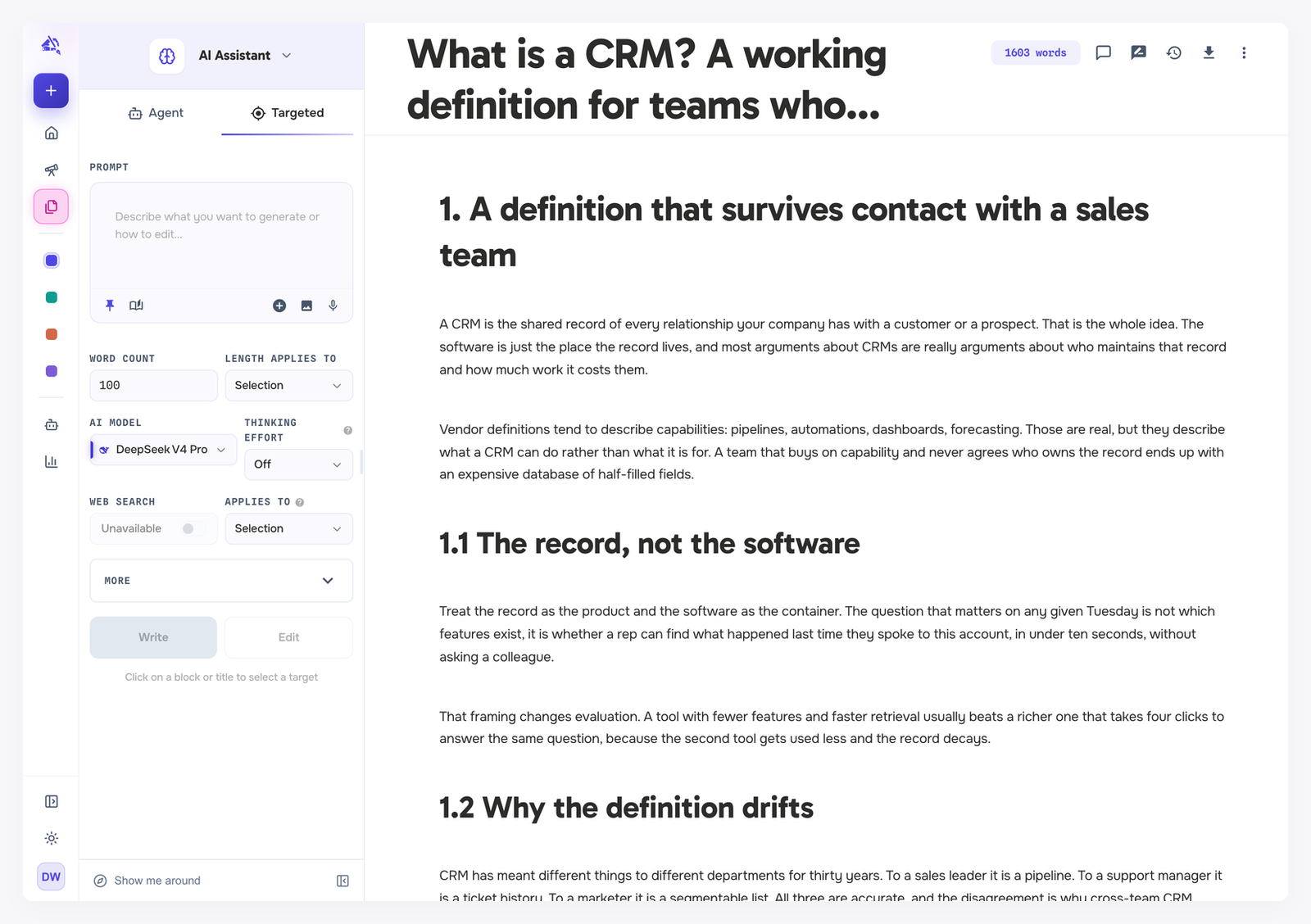
The Targeted tab of the AI Assistant is for precise work. Where the agent plans its own steps across the draft, Targeted does exactly one thing: it writes or rewrites the block you pick, with the settings you choose.
Write or edit a block
Click the block you want to work on, or the title. Until you do, the tab reads Click on a block or title to select a target.
Describe what you want in the prompt box.
Click Write to generate new content for the block, or Edit to change what is already there.
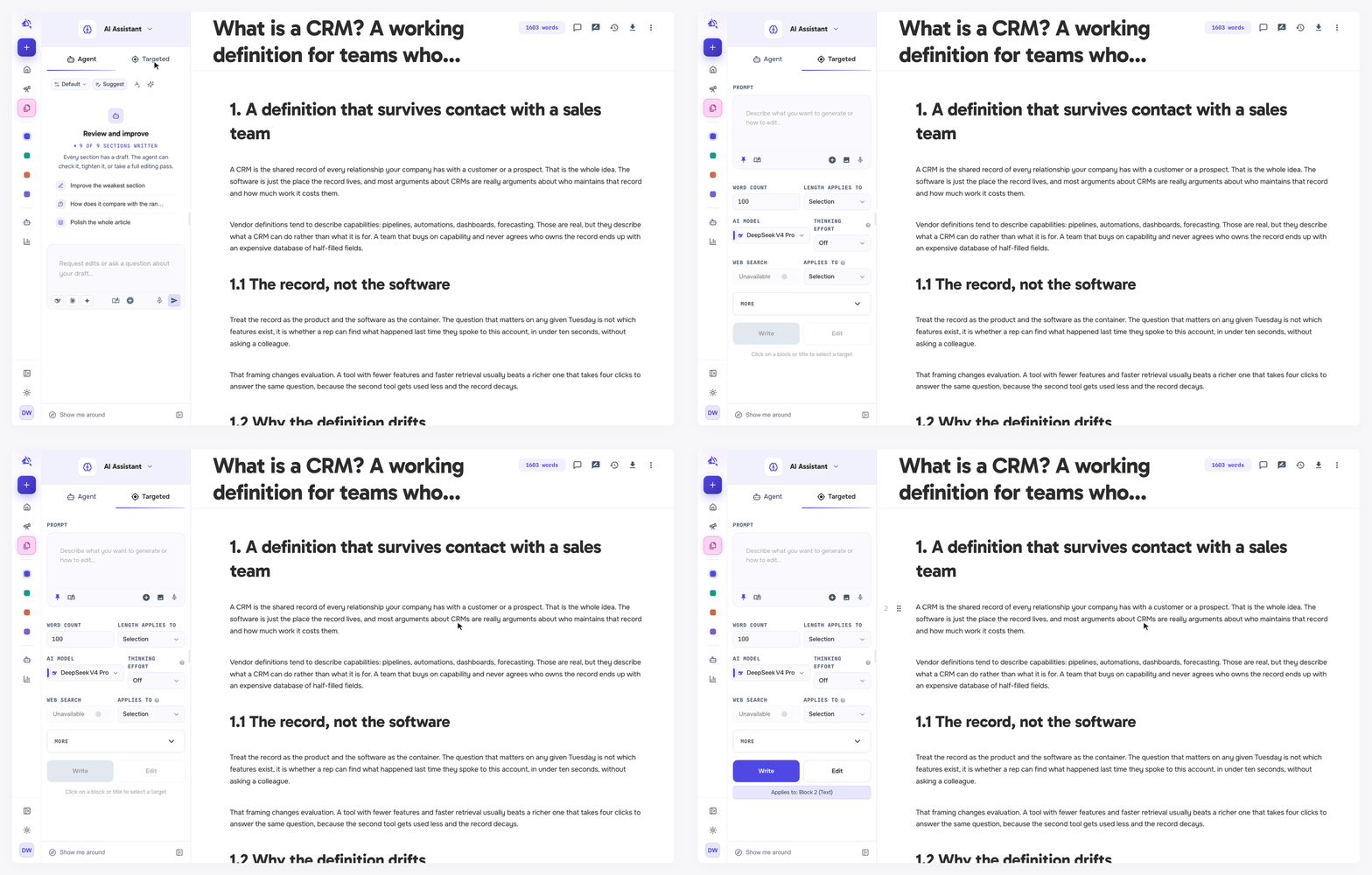
With a block selected, Cmd/Ctrl + G writes and Cmd/Ctrl + E edits. More Options → Keyboard Shortcuts in the editor lists the rest.
The pin icon in the prompt box decides whether your prompt is kept after generating or cleared. Next to it, the Saved instructions icon applies a saved prompt with its settings. See Saved instructions and model defaults.
The settings
Length
Word count: how many words to aim for.
Length applies to: Selection gives the whole word count to the selected block. Whole draft treats it as the length of the entire draft and gives the block its share.
Model
AI model: which model writes.
Thinking effort: how deeply the model reasons before responding. More effort usually produces better results but takes longer and costs more.
Web search: lets the model search the web while it writes. It shows Unavailable for DeepSeek models, which do not support it.
Applies to
Selection: only the selected block.
Whole draft: every content block in the draft, one after another. Headings are left as they are.
More
Voice: Active Voice or Passive Voice.
Tone: Neutral, Casual, Formal, Simple & Concise, Optimistic, Worried, Curious, Fun, Assertive, Encouraging, Surprised or Cooperative.
Language: English, Spanish, Portuguese, French, Italian, German or Dutch. Choose Other to type any language.
Content Blacklist: words and phrases the AI should not use. Type one and press Enter to add it.
Edit strategy: Suggest changes shows the result as tracked changes to review. Apply directly writes it into the draft. See Suggestions and track changes.
Your settings are remembered for the next time you use the tab.
Add context and images
Click Add context in the prompt box to attach Context Library items, a URL, a file, a note or a section of this draft. Everything attached to one request shares a budget of about 100,000 characters, and each item is read up to about 40,000. See The Context Library.
Attach image sends a picture along with your prompt, for example a screenshot to describe. DeepSeek models read text only, so pick another model for this.
Image blocks
Select an image block and the tab switches to image controls: Image Model, then the settings that model offers. Google models offer Aspect Ratio, Resolution and, where the model supports it, Google Search grounding; OpenAI models offer Quality, Size and Background. Create generates a new image from your prompt, and Edit changes the current one.
On product, service and landing pages
Commercial pages are written section by section, so the tab adapts:
Scope: Whole section writes every block in the selected section. This block writes just the one you clicked.
Length: Automatic uses the section's own length target, from your research or the section's recipe. Set my own lets you type a word count.
Web search shows Not on this page type. A commercial page is written only from your business context, so text found on the web cannot slip in as a claim.
When a section needs a fact your business context does not have, the tab asks before writing. Answer, or leave it blank to skip.