
Two ways to work beyond the keyboard: speak instead of typing, and add images to your content, generated or uploaded.
Voice input
Voice input turns what you say into text. It is always free and never counts toward your AI usage allowance.
Dictate into your draft
Click into a block, or into the title.
Click the microphone on the formatting toolbar, or press Cmd/Ctrl + M.
Speak. Recording stops on its own after a short pause, or you can press Cmd/Ctrl + M again.
The text is written into the block where you were working.
Speak to the AI
The Agent and Targeted tabs have a microphone in the message box too. Say your request, such as "shorten the introduction and add a line about pricing", and it is transcribed into the box, ready to send.
Good to know
A recording can be up to 2 minutes long.
Only one recording runs at a time. Stop the current one before starting another.
The first time, your browser asks for permission to use the microphone. If voice input says it cannot access the microphone, allow it in your browser's site settings.
Images
Add an image block from the block type menu. An empty image block offers two choices.
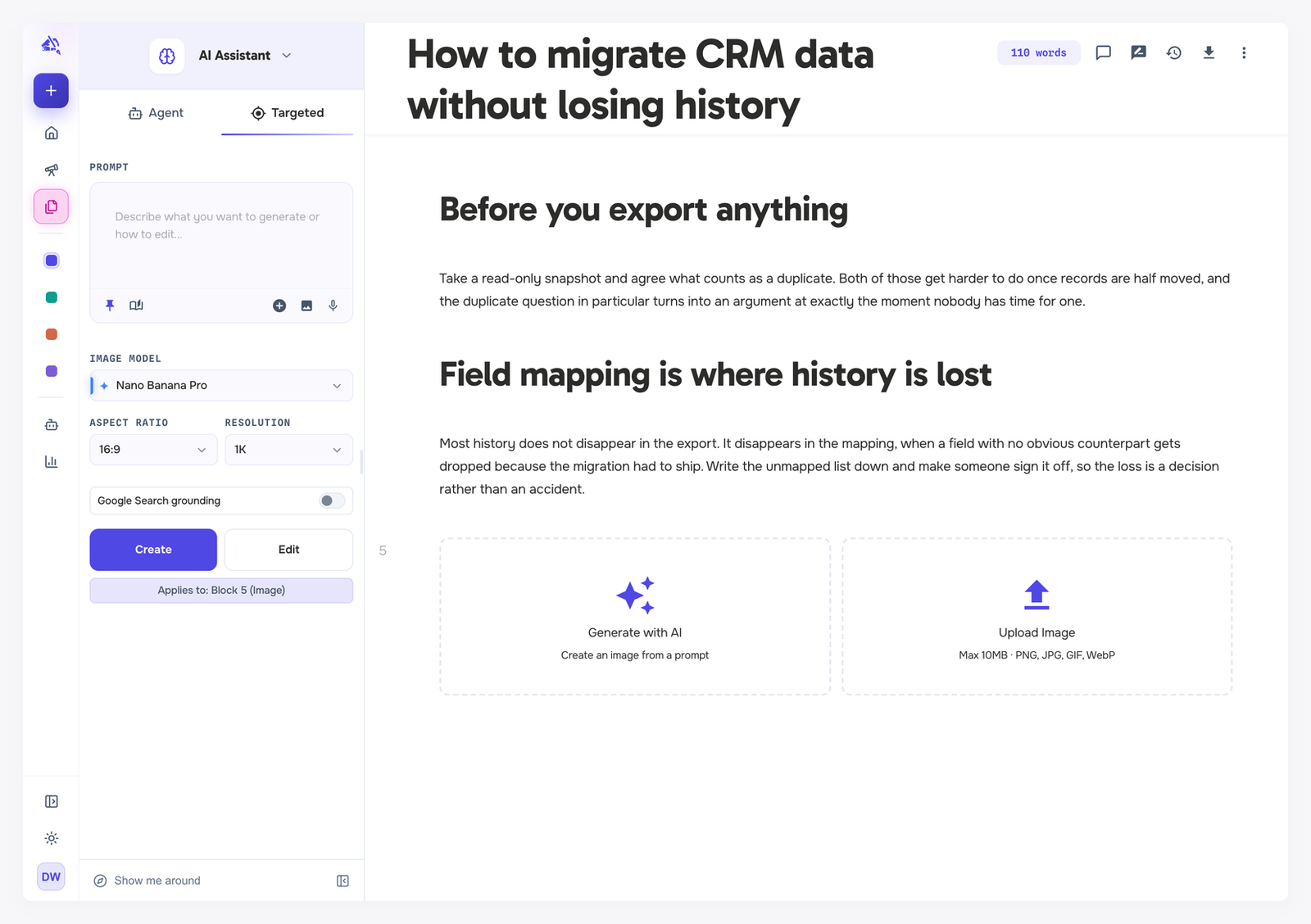
Upload an image
Click Upload Image and pick a PNG, JPG, GIF or WebP file up to 10 MB.
Generate an image
Click Generate with AI. The Targeted tab opens with image controls, already pointed at the block.
Describe the image you want in the prompt box.
Adjust the settings if you like, then click Create.
To change an image you already have, select its block, describe the change and click Edit.
Image settings
The settings depend on the Image Model you pick:
Google models: Aspect Ratio, Resolution and Google Search grounding, which lets the model use Google Search while it creates the image. Every Google model offers ten aspect ratios, from 9:16 portrait to 21:9 landscape, and Nano Banana 2.1 adds very tall and very wide ones: 1:4, 4:1, 1:8 and 8:1. If you switch to a model without them, the closest ratio in the same orientation is used. The resolutions and grounding depend on the model: Nano Banana Pro and Nano Banana 2.1 offer 1K, 2K or 4K with grounding, and Nano Banana 2 Lite makes 1K images only, without grounding.
OpenAI models: Quality, Size and Background.
A tall image is shown scaled down in the editor so it fits comfortably on your screen. Only the display changes, not the image.
Your default image model is set in Agent Studio → Models & behavior. See Saved instructions and model defaults.
Images from the agent
The agent can add images too, when you ask for one or when its plan calls for it. It can also edit an image: point it at one already in your draft and describe the change ("make the image in the pricing section warmer"), or attach an image to your message and ask it to edit that one. For an image already in your draft, with Suggest changes the edited image arrives as a new image block right after the original, for you to accept; the original stays until you delete it. With Apply directly, the agent replaces that image in place. An edited copy of an image you attach always arrives as a new image block, in either mode, unless you name the block it should replace. It uses the image model shown under the message box in the Agent tab. See The AI agent.
Unlike voice input, generating images uses an AI model, so it counts toward your AI usage allowance unless you use your own API key. See Research credits and AI usage.