
Everything you write in WordCrafter opens in the same editor. Your content sits in the middle, the tools you use most sit along the top, and a sidebar on the left holds the AI, your outline and SEO.

The canvas
Click the title to rename your draft. Below it, your content is made of blocks: every paragraph, heading, list, image or table is one block. Click into a block to type, and select text to bring up the formatting toolbar. Type / in an empty block to open that toolbar without selecting anything.
WordCrafter saves as you type. While a change is saving, the word count at the top reads Saving..., and it goes back to the count once the change is stored.
The block types and the toolbar each have their own article: Blocks and formatting.
The top bar
Along the top right, from left to right:
Word count for the whole draft.
Comments, for notes pinned to the text.
Suggesting. Turn it on and your own edits appear as tracked suggestions rather than changing the text straight away.
Version history, to see earlier versions and restore one.
Export, to take your draft out of WordCrafter.
More Options, the menu described below.
On product, service and landing pages, a Section frames switch also appears. It shows or hides the section frames on the canvas: each section's type, outline and management controls. See Blocks and formatting.
The sidebar
Click the arrow at the top left of the canvas to open the sidebar, and the icon at its bottom right to close it. The menu at the top of the sidebar switches between three views.
AI Assistant
The AI works here, in two tabs. Agent takes plain-language requests ("tighten the introduction", "add a section on pricing") and works through them across the draft. Targeted gives you precise control over a single generation: what to write, where, and how long. The Agent Studio icon at the top of the Agent tab opens Agent Studio, where you set what the agent knows about you.
Outline
The Outline view lists the headings in your draft as a tree, so you can find your way around a long draft.
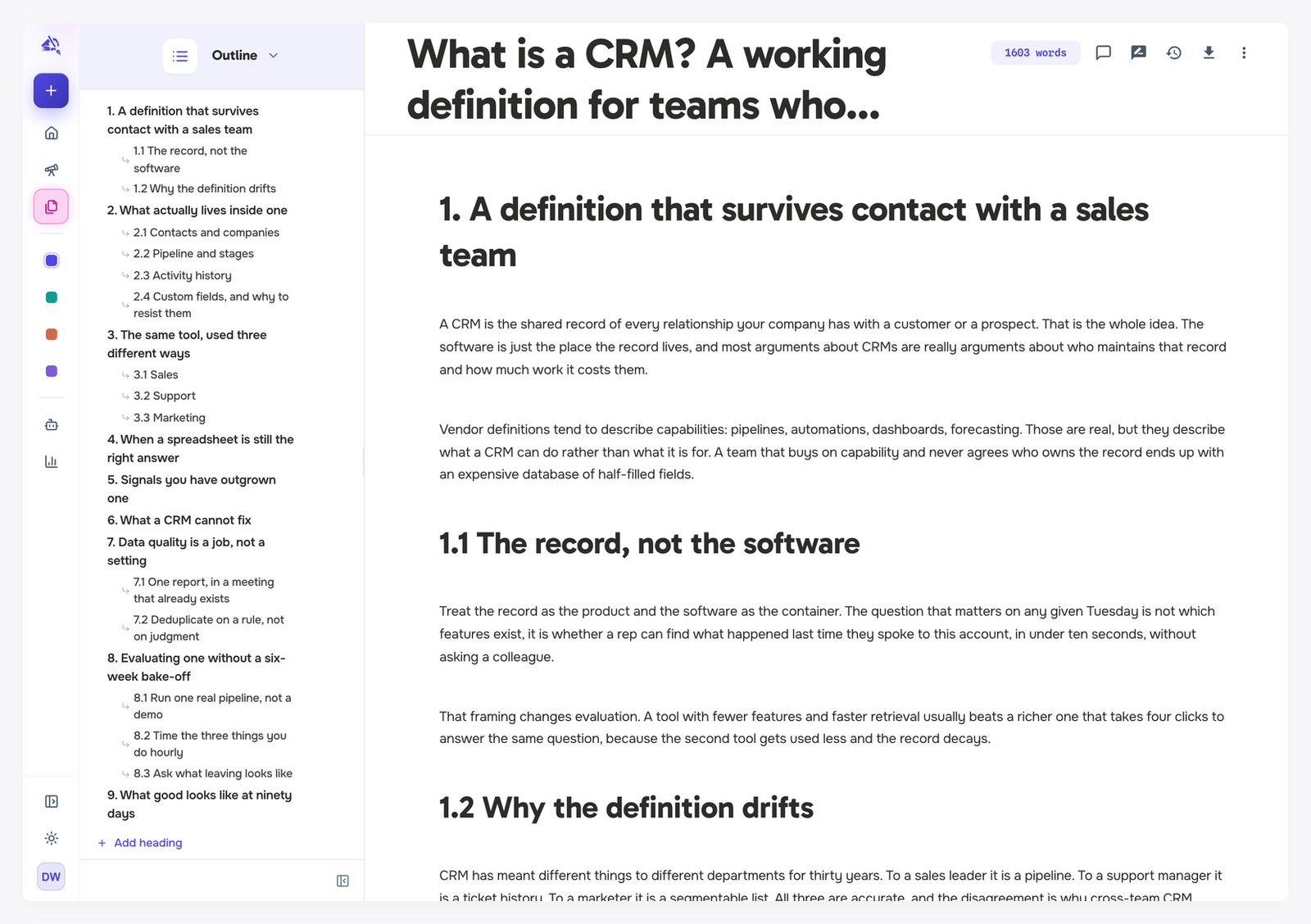
Click a heading to scroll to it.
Drag a heading to move the whole section, with everything under it. Dragging changes only the order, never the heading level.
Hover a heading to add a subsection under it, or to delete the section. Deleting removes the heading and all of its content.
Add section at the bottom adds a new heading at the end.
Heading titles are edited on the canvas, not in the Outline.
This Outline is built from the headings in your draft, and it changes as you write. It is not the outline from your research, which stays with the research. Editing one does not change the other.
SEO Optimization
Scores your draft against its target keyword and suggests improvements. When the draft has research attached, the keyword and length target come from that research.
The More menu
Click More Options (the three dots at the top right) for everything that concerns the draft as a whole.
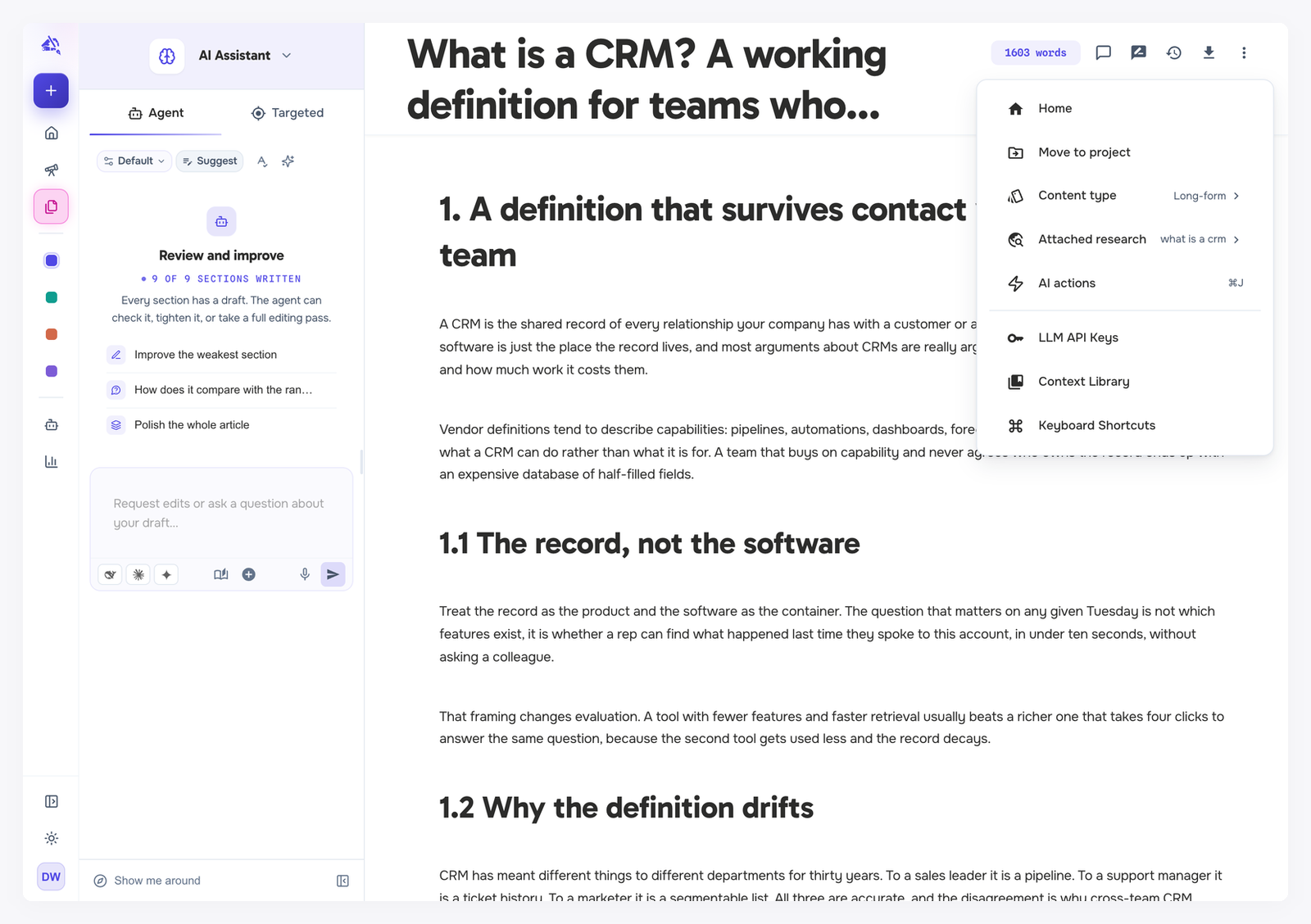
Home takes you back to Home.
Move to project files the content under a different project.
Content type shows the current type and lets you change it. You can switch between long-form and news article, or between product, service and landing page, but not from an article type to a page type or back. For that, create new content with the right type. See Supported content formats.
Re-import sections appears on commercial pages created from research. It brings sections from the research's page plan back onto the page.
Attached research shows the research attached to this content. From its submenu you can view it or Detach it. With no research attached, it lists your research so you can attach one.
AI actions opens the list of AI actions, also available with Cmd/Ctrl + J.
LLM API Keys and Context Library open those pages.
Keyboard Shortcuts lists every shortcut in the editor.
A few shortcuts worth knowing
Cmd/Ctrl + K opens the inline AI editor for the text you have selected.
Cmd/Ctrl + L adds the selected text to the AI Assistant as context.
Cmd/Ctrl + M starts voice input in the block you are in.
Cmd/Ctrl + Z undoes your last edit anywhere in the draft.