
Already have content you want to improve? Import & optimize brings it into the editor as normal blocks, so you can research it, rewrite it with the AI and score it like anything written in WordCrafter.
Open it from New → Import & optimize.

Pick a source
From a URL: the URL of a published page. WordCrafter fetches it and extracts the article. If the page builds itself in the browser, the fully rendered version is used.
Markdown: paste GitHub-flavored Markdown.
Paste: click the box, then paste rich content copied from Google Docs, Word or a web page. Paste a bare URL here and WordCrafter offers to import the page itself.
There is no file upload. To bring in a document such as a PDF, copy its text and use Paste. To give a PDF to the AI as reference instead, add it to the Context Library.
Click Preview import. Nothing is created yet.
Check the preview
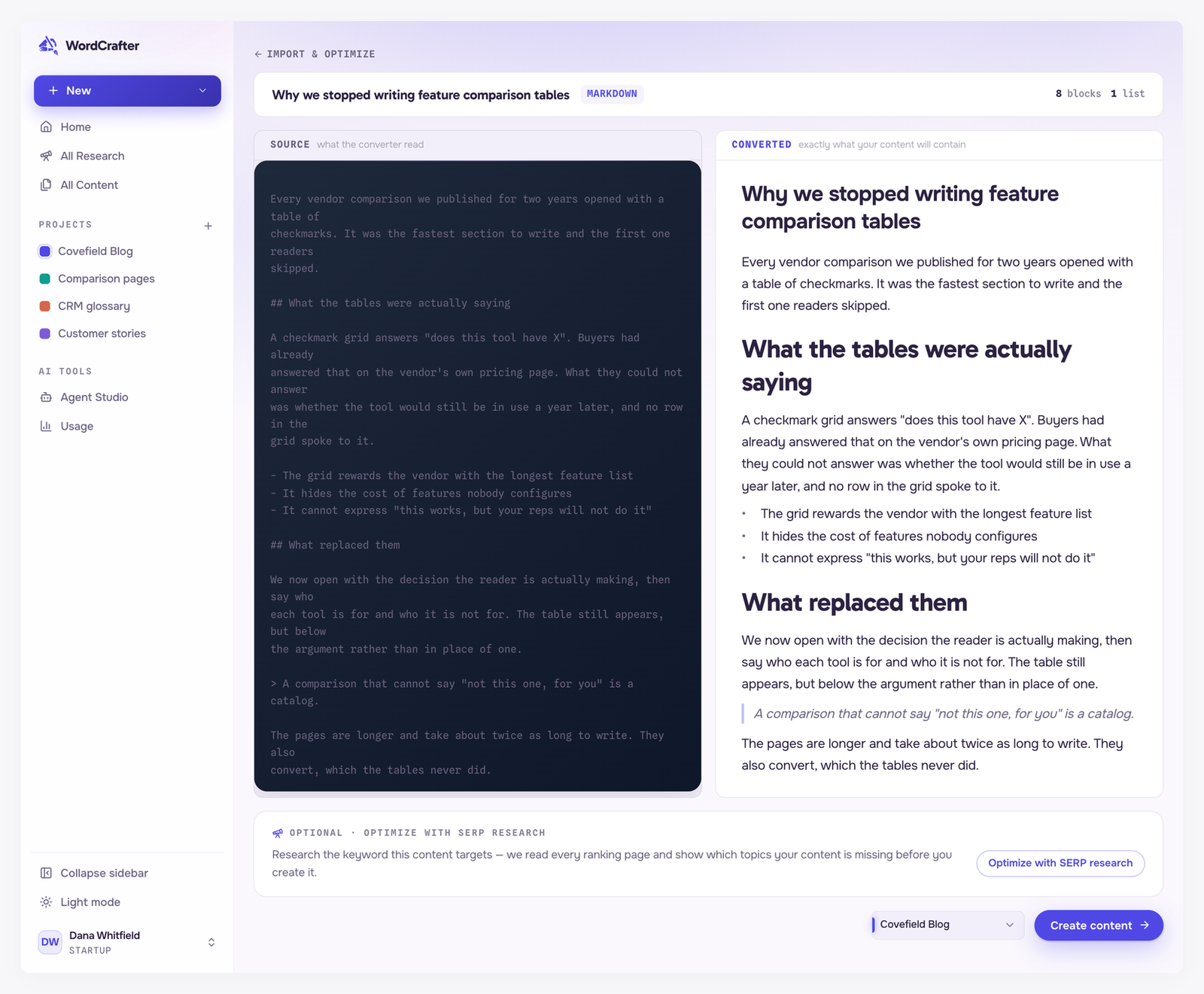
The preview shows Source, what the converter read, next to Converted, exactly what your draft will contain. The strip at the top counts the blocks by kind, such as lists, tables and images.
When something did not come through cleanly, the preview says so:
Very little content: the page served almost nothing, so the import may be incomplete. Try pasting the content instead.
Dropped elements: parts of the page that could not be converted, with the reason for each.
Resolved structures: places where the page's structure was ambiguous and AI decided how to convert it.
Optimize with SERP research (optional)
Before creating the content, you can research the keyword it should rank for. Click Optimize with SERP research, enter the keyword, and click Start research. It works like any other research and spends one research credit. See Starting a research run.
The research stays attached to the new content, so its findings are at hand while you rewrite.
You can also start from the other side. A page audit on a research has Import & optimize your live page, which opens this preview with the research already attached and says how many of the sections common to ranking pages your live page covers. See Page audit.
Create the content
Pick a project and click Create content. The new draft opens in the editor with the type Imported.
A preview is kept for about a week. After that, start a new import.
Images
Images in imported content are copied into WordCrafter in the background, so they keep working even if the original page changes. When that finishes, a message tells you how many images were saved.
If some images could not be copied, a banner in the editor names each one and why. Those images still point at the original website, and they keep working as long as that website serves them. Replace them with your own uploads if you are moving away from that website.