
WordCrafter does not publish to your website or CMS. When your draft is ready, you export it and paste or upload it wherever it goes.
Click the Export icon (the download arrow) in the editor's top bar.
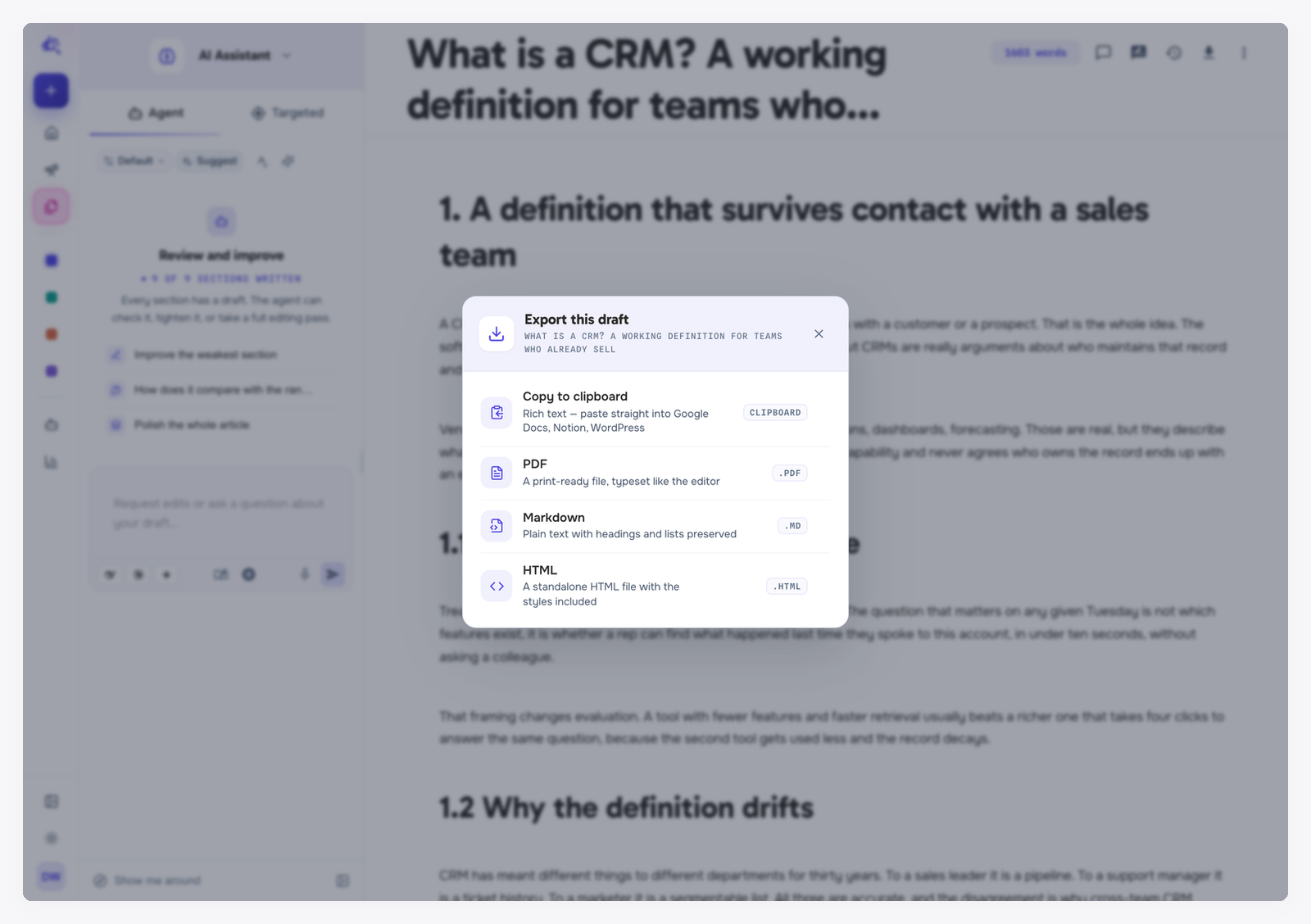
The formats
Copy to clipboard: rich text, with headings, lists, links and formatting kept. Paste it straight into Google Docs, Notion or WordPress.
PDF: a print-ready file typeset like the editor. Good for sharing a draft for sign-off.
Markdown: plain text with headings and lists preserved, for static sites and Markdown-based CMSs. Videos come out as links.
HTML: a standalone page with the styles included.
Every format includes the title.
Pending suggestions are not exported. Every format exports the text as it was before the suggestions, and the dialog does not warn you. Accept or reject your suggestions first, for example with Accept all on the review bar. See Suggestions and track changes.
Export everything at once
To download all of your work in one go, open Settings and use Export everything in the Your data section. You get one zip file with:
Every draft and brief you own, each as a Markdown file and as a standalone HTML page, in one folder per project. Content that is not in a project is in Unfiled.
Every research: a readable report, plus the full findings as a JSON file.
Your Context Library: notes, saved web pages and the text of your uploaded files. PDF, TXT, Markdown, CSV and JSON uploads under 5 MB are included as the original file too.
Your Agent Studio settings: rules, modes, memories, business context and AI settings.
A
README.txtthat explains the layout and amanifest.jsonthat lists everything.
Images, audio and file attachments inside your drafts are included as links, and the links keep working for at least two days, so download anything you want to keep soon. Pending suggestions are left out here too. You can start one export a minute.
Export everything keeps working after your subscription ends: your account is read-only for 90 days, and you can still export each document or everything at once until your content is deleted. After that there is nothing left to export. See Managing your subscription.
Sharing a brief
A content brief can also be shared as a public link, so a writer can read it without a WordCrafter account. See Content briefs.
What is not available
There is no Word (.docx) export. To get a Word document, copy to clipboard and paste into Word or Google Docs, then save it from there.