
The agent is the Agent tab of the AI Assistant. Tell it what you want in plain language, such as "tighten section 2 and make the pricing paragraph concrete", and it works out the steps, reads your draft and makes the edits.
What the agent knows
Every run starts with more than your message. The agent can read:
Your draft, all of it, not just the part on screen.
The attached research, when the draft has one: the target keyword, intent and length, your refined outline or page plan, and related keywords to work in.
Your business context, rules and memory, set in Agent Studio. See What the agent knows about you.
Anything you attach to the message, covered below.
Depending on the mode, it can also search the web and read pages you link to.
Ask for something
Type your request in the message box. Request edits or ask a question about your draft... is a good guide: it can do either.
Press Enter or click Send.
When the chat is empty, the tab offers a few suggestions that fit where your draft is, such as Improve the weakest section once every section has a draft. Click one to send it.
Suggest or Apply
The chip at the top of the tab decides how the agent's edits reach your draft:
Suggest: edits arrive as tracked changes, and you accept or reject each one.
Apply: the agent writes straight into the draft. Nothing waits for review, and undo is your safety net.
Click the chip to switch. See Suggestions and track changes.
Modes and models
The Default menu next to it switches the agent into a mode, such as Brainstorm, which never touches the draft, or Drafter, which writes and tightens prose. The model icons under the message box show which models plan, write and make images, and let you change them for this draft. See Rules and modes and Saved instructions and model defaults.
Give it reference material
Type @ in the message box, or click the add-context button under it, to attach material to your message.

Quick add: add a URL, upload a file or write a note on the spot.
Items and folders from your Context Library. Click the paperclip next to a folder to attach all of it.
This draft: a section of the draft you are in, useful for "rewrite this to match that section".
Attached items show as chips above the message box. Something you added on the spot can be kept for later with the bookmark icon on its chip, which saves it to your Context Library.
How much it reads
A bar under the chips shows how much context is attached. Each item is read up to about 40,000 characters. A longer item is marked as partial, and only its first part is sent. An attached folder is sent as a list of what it holds, and the agent opens the items it needs.
If an attached folder holds more than the agent can read in one request, a dialog asks how to fit it:
Clip each item proportionally (recommended): every item shrinks to fit.
Take first N items in full, skip the rest.
Customize: pick exactly which items to include from the folder chip.
Follow what it is doing
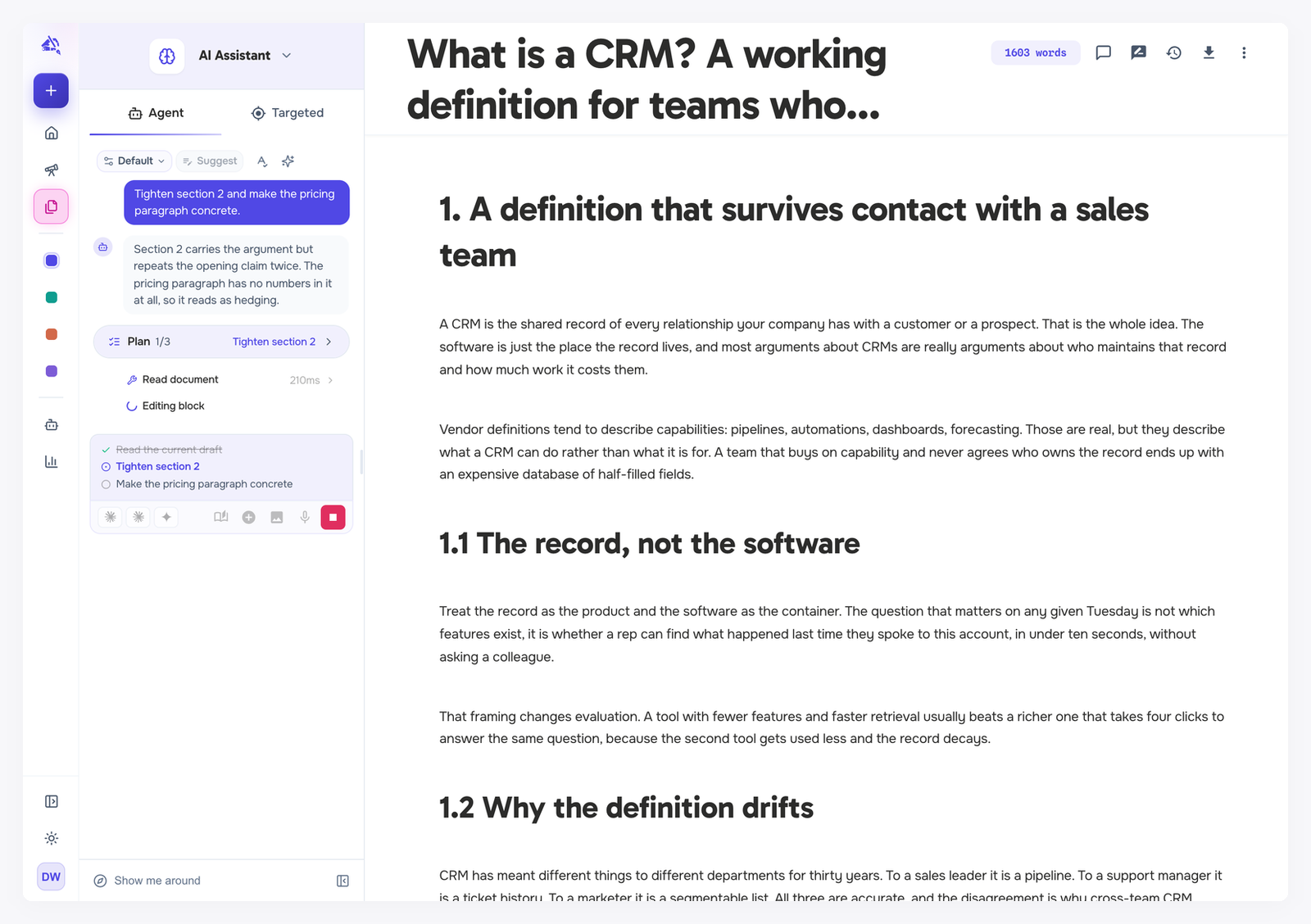
While it works, the chat shows each part of the run:
Its thinking: what it noticed and what it intends to do.
Plan: the steps it set itself, with the current step highlighted. The same list appears above the message box, checked off as it goes.
Steps such as Read outline or Editing block, each with how long it took. Click one to see the details.
Questions. When something is unclear, the agent stops and asks, often with options to pick from. Choose one, or answer in your own words.
Changes: a summary of the edits it applied or suggested.
Done, with a line naming the models that planned, wrote and made images for the run.
On a long task, the agent may pause and say how many steps it has taken. Click Continue to let it keep going.
If a run fails, the message explains why and offers Try different model.
Stop it, or change course
Click the red stop button to end a run. Edits it already made stay in the draft. Use undo, or Version history, where every agent run is saved as a version, to go back.
The message box is hidden while the agent works. To steer it, stop the run, then send a new message: it continues the same chat with everything said so far.
Leaving the editor while a run is in progress stops it. WordCrafter asks first with Leave and stop the run? Click Stay to let it finish. You can pick the chat back up later from Chat history.
Chats
New chat (the + icon) starts fresh, without the earlier messages.
Chat history lists your past chats on this draft, with the models each one used. Open one to read it or continue it.