
Comments are notes attached to your draft: a question for a colleague, a reminder to check a figure, feedback on a section. They sit next to the text they are about.
Add a comment
On a block: select text in it, or type /, and click Add a comment on the formatting toolbar.
On the title: select text in the title and click Add comment on its toolbar.
Write your comment and send it. You can attach an image, a PNG, JPG, GIF or WebP up to 10 MB.
See your comments
Click the Comments icon in the top bar, which shows how many comments the draft has, and choose how to see them:
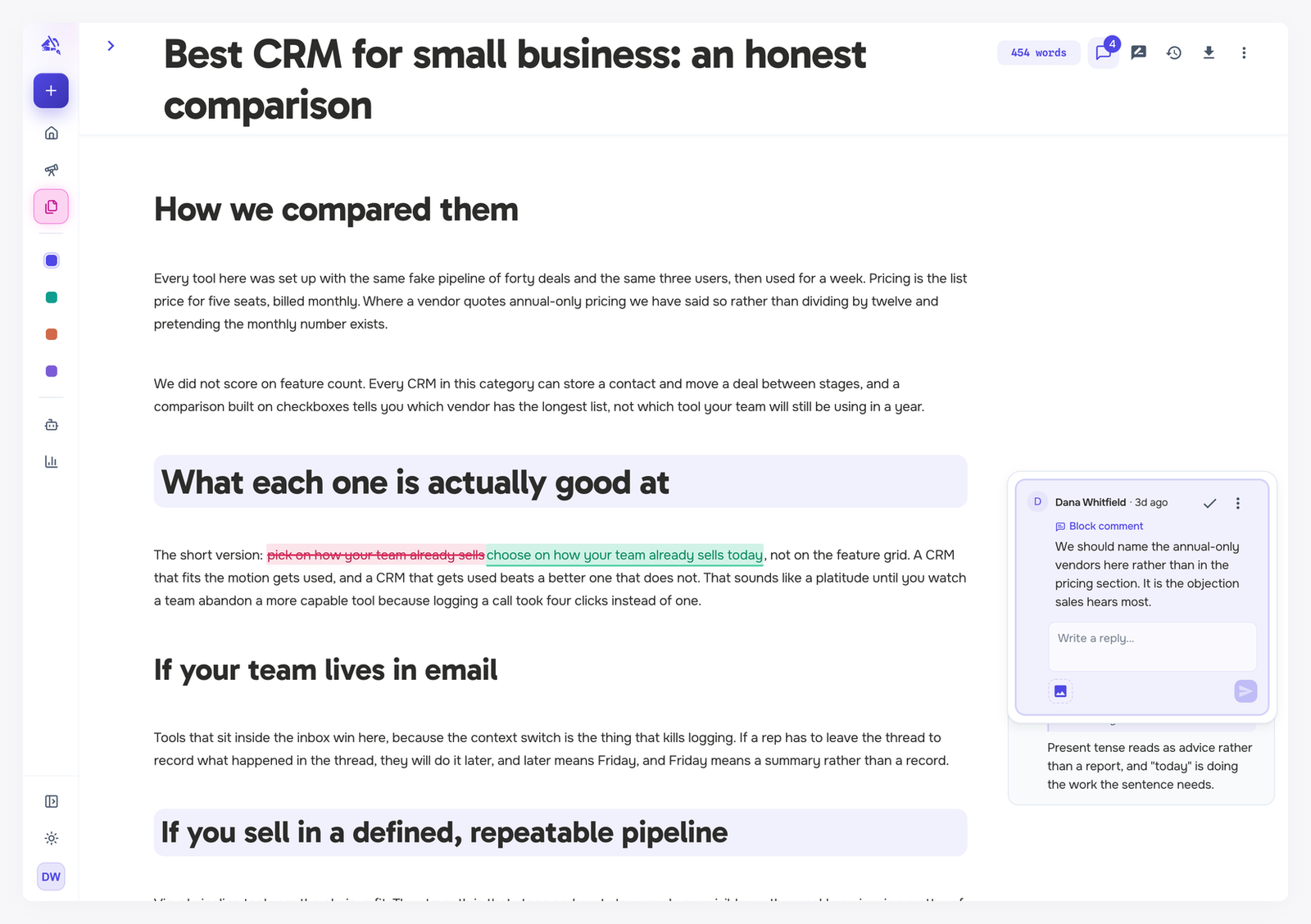
Inline Comments shows each comment in a column beside the block it belongs to.
Comments Sidebar lists every comment in one place. Search them, and switch between Unresolved and Resolved.
Suggestions appear in the same list, labeled as suggestions, so you can review everything on a draft in one pass. See Suggestions and track changes.
Reply, edit and resolve
Reply in the Write a reply box under a comment. Replies can include images too.
Edit or delete your own comment from its More options menu. Deleting asks you to click again to confirm.
Resolve your own comment with the checkmark when it is dealt with. It moves to Resolved, where you can still find it.