
Every WordCrafter plan runs AI models on WordCrafter's own keys, paid for out of your plan's AI usage allowance. If you already have an account with an AI provider, you can connect your own API key instead. Requests to that provider then go on your key, and the provider bills you directly.
Why connect a key
No limit from WordCrafter. Requests on your own key never count against your AI usage allowance, and they keep working after the allowance is used up.
You pay the provider's price for what you use, on your own provider account.
You do not need a key to use any model. Every model is available on every plan, running on WordCrafter's keys until your allowance is used up. A key only changes who pays for that provider's requests.
Supported providers
Provider | A valid key starts with |
|---|---|
OpenAI |
|
Anthropic |
|
Google AI Studio |
|
DeepSeek |
|
A key in any other format is rejected when you save it, with a message saying what it should start with.
Add a key
Open LLM API Keys in your account.
On the API Keys tab, click Connect on the provider's card. Get API key under it opens the provider's own page for creating one.
Paste the key and save.
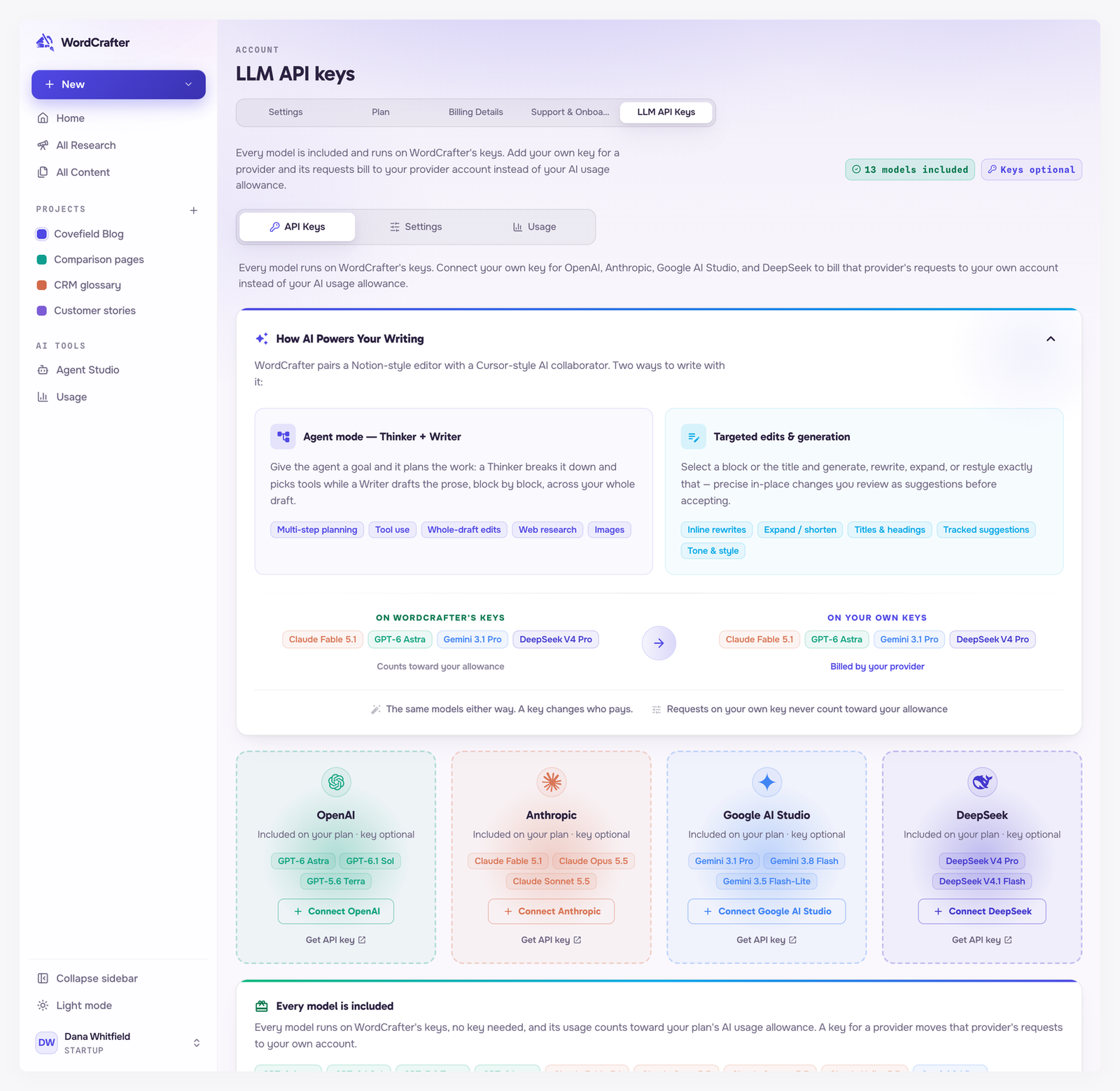
The provider's card shows the key's status: Valid, Invalid, or Not validated if it has not been checked yet.
From then on, requests to that provider's models use your key instead of WordCrafter's.
In the rare case we can't read a key you saved, its card shows Unreadable with a Re-enter key button. Nothing you did caused it: paste the key again, or a new one from the provider, and it is back in use once the provider accepts it. Until then, that provider's requests run on WordCrafter's keys where they are available, and count toward your AI usage allowance.
See what you spent
The Usage tab on the LLM API Keys page splits your AI spend into Your own keys, which you paid your providers directly, and what ran on WordCrafter's keys and counted toward your allowance.
The totals on that tab cover the calendar month. Your AI usage allowance follows your billing cycle, so the two can show different numbers. The Usage page in the app sidebar follows the billing cycle.
Change or delete a key
Change a key by editing it on the provider's card. The new key replaces the old one.
Delete a key with the delete button on the card, and confirm. Deleting is immediate and cannot be undone.
Deleting a key normally takes no models away: that provider's requests go back to running on WordCrafter's keys, where they are available, and count toward your AI usage allowance again. The confirmation says so if they are not.
How your keys are protected
Encrypted when stored. A key is encrypted with AES-256-GCM before it is saved to the database.
Masked on the page, and never sent back. Once a key is saved, the page shows only its first and last four characters. The full key is not sent to your browser again, so there is nothing to reveal. If you need a different key, replace it.
Tied to your account. Your keys are only used for your own requests. When WordCrafter's support team helps you, they can see most things in your account, including which providers you have connected and the masked key on this page. They cannot read a saved key, and cannot add, replace or delete one. They also cannot change your password, your email address, your profile details or your billing, and cannot sign you out of every device.