
A project is a home for one body of work, such as a blog, a set of comparison pages or a client. It groups that work's content and research, and it can carry its own settings for how the agent writes.
Your account's Agent Studio settings apply everywhere. A project can replace some of them, such as its business context and model defaults, and add to others, such as rules and memory. What the agent knows about you explains which is which.
Your projects
Open Projects from the counter on Home, or click any project under PROJECTS in the app sidebar.
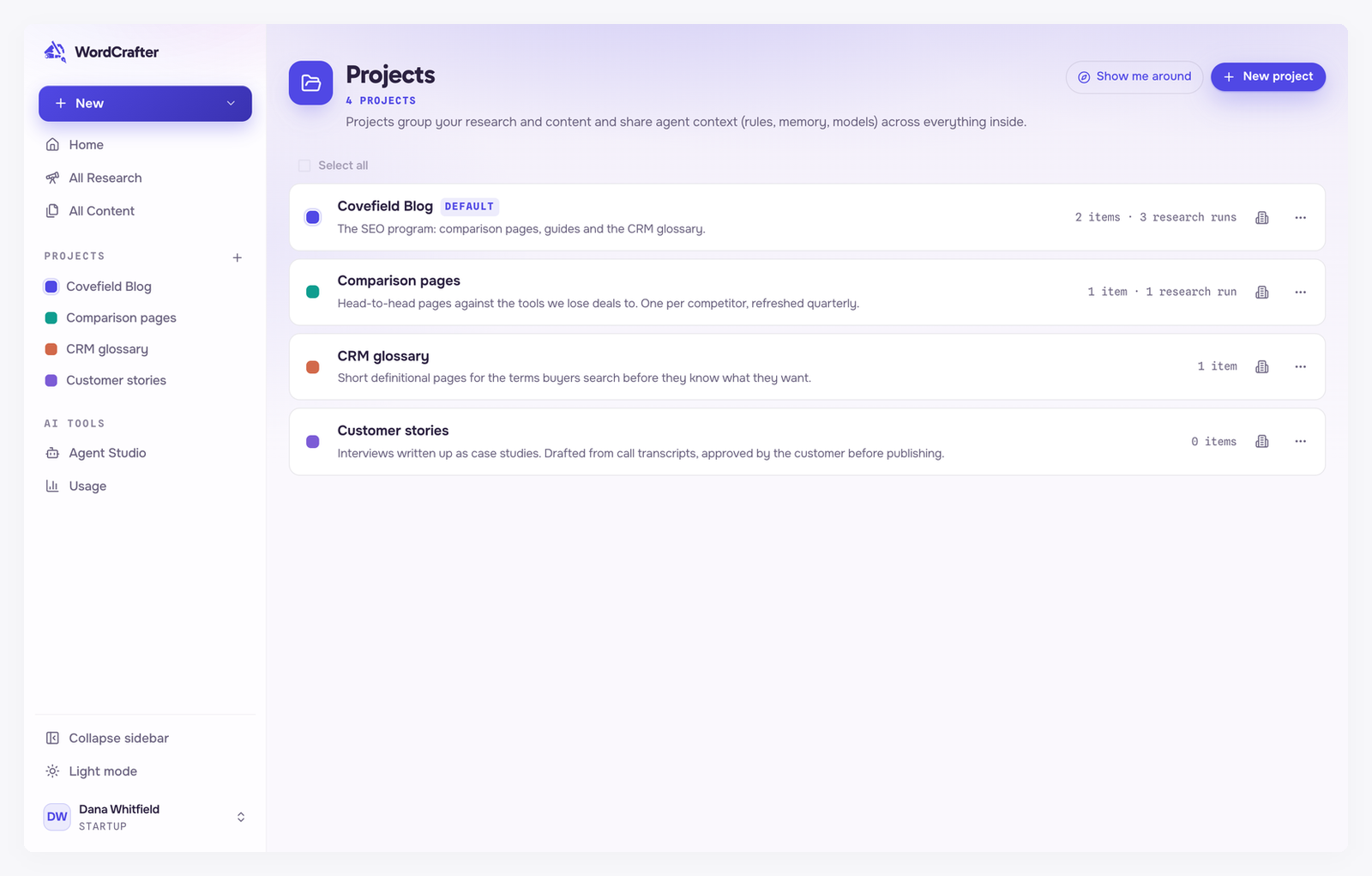
Each row shows the project's color, name, description, how many pieces of content it holds, and how many research runs, when it has any.
The default project
Every account starts with one project, My Content, marked Default. New work goes there unless you choose another project. You can rename it, but not delete it.
Create a project
Click New project, or the + next to PROJECTS in the sidebar. Give it a Name, an optional Description and a Color, then click Create project.
Inside a project
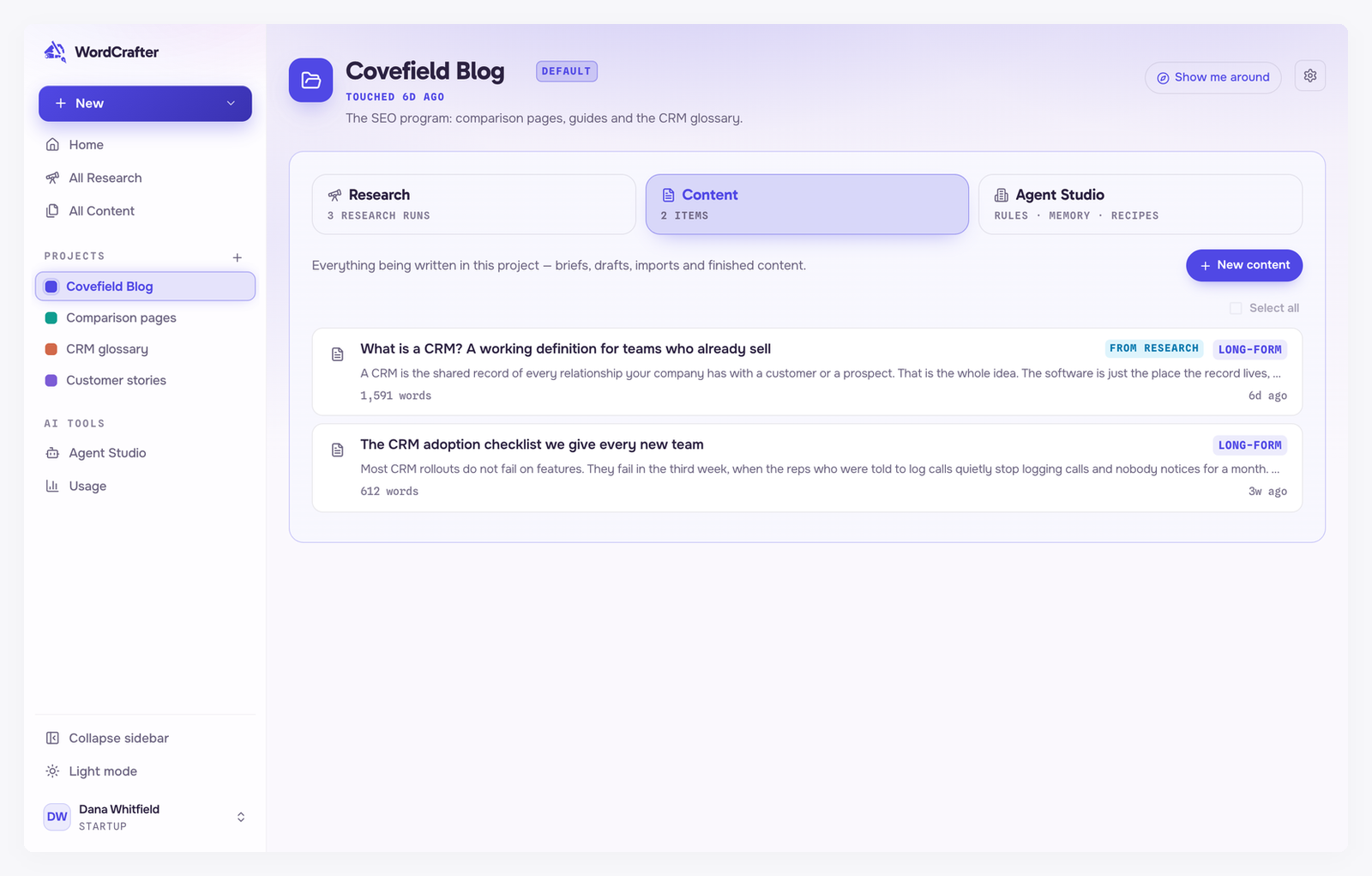
The header shows the project's name and its description, which you can click to edit. Below it are three tabs, the first two with their counts:
Research: the project's research.
Content: everything written in the project, including briefs and imports.
Agent Studio: the same sections as Agent Studio in the sidebar, set for this project only. This is also where you set the project's Website, which SEO uses to tell internal links from external ones.
Anything you start from inside a project, whether research, new content or an import, is filed in that project.
Organize
Move content between projects from All Content, with Move on selected content, or from More Options → Move to project in the editor. See Your content.
Move research the same way from All Research. See Managing your research.
Rename a project from its ⋯ menu.
Duplicate a project
Duplicate, in the project's ⋯ menu, creates a new project named "Copy of" the original that writes the same way but starts empty. It copies the project's rules, memories, custom modes, saved instructions, business context, and its Page Structures and Writing Recipes. It does not copy any content, briefs or research.
Duplicating is the quickest way to set up a new client or website that shares a voice with an existing one.
Delete a project
Choose Delete from the project's ⋯ menu, or select several projects and delete them together. Before anything is deleted, a summary shows what happens to everything inside:
Content and briefs stay in All Content, unfiled. Research becomes unfiled too.
Custom modes and saved instructions made in the project become account-wide.
Rules and memories that belonged only to the project are deleted.
Deleting a project cannot be undone.