
All Content in the app sidebar lists everything you have written, across every project.
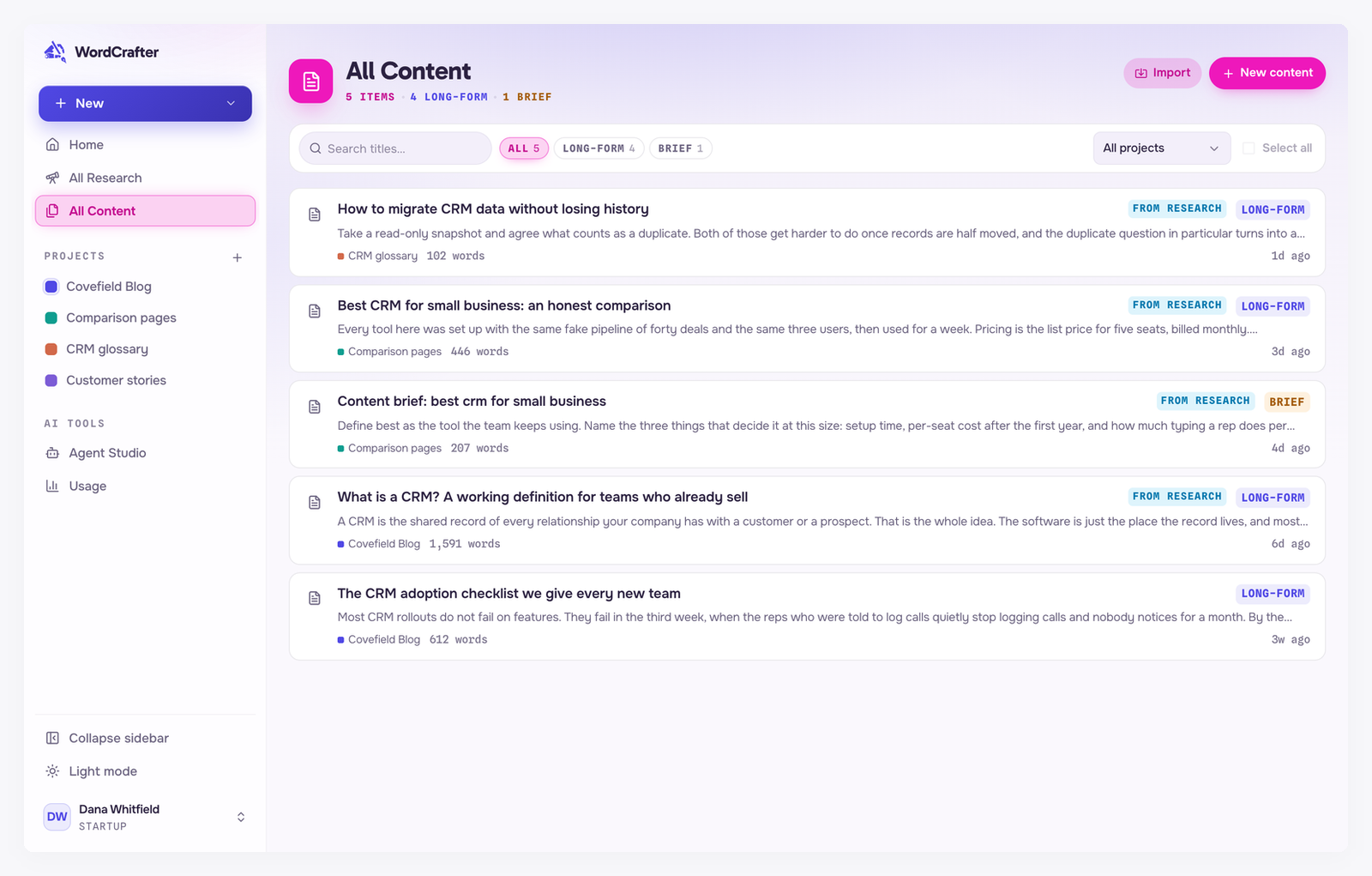
What each row shows
The title and the first lines of the content. Content with nothing in it yet says Nothing written yet.
Its content type, such as Long-form, News, Product page or Imported. See Supported content formats.
From research, when the content has research attached.
Its project, its word count, and when it was last updated.
Click a row to open it in the editor.
Find your content
Once you have four or more items, a filter bar appears above the list:
Search titles filters the list as you type.
Type filters show how many items you have of each type. Click one to see only that type.
All projects narrows the list to one project, or to Unfiled content that is not in any project. It appears when your content is in more than one project, or when some of it is unfiled.
Move or delete several at once
Tick the items you want, or use Select all. A bar appears with two actions:
Move files them under another project, or under Unfiled.
Delete removes them. WordCrafter asks you to confirm, because deleting is permanent and cannot be undone.
To move the draft you are writing, use More Options → Move to project in the editor.
Where content comes from
The New content and Import buttons at the top of All Content start new content from scratch or bring existing content in. See Creating content and Import and optimize.
Unfiled content
Content is unfiled when it is not in any project, for example after the project it belonged to was deleted. Deleting a project never deletes its content. Unfiled content stays in All Content, and you can move them into a project whenever you like.