
Everything in WordCrafter starts from the New button at the top of the app sidebar. It opens three choices, numbered in the order the work usually flows.
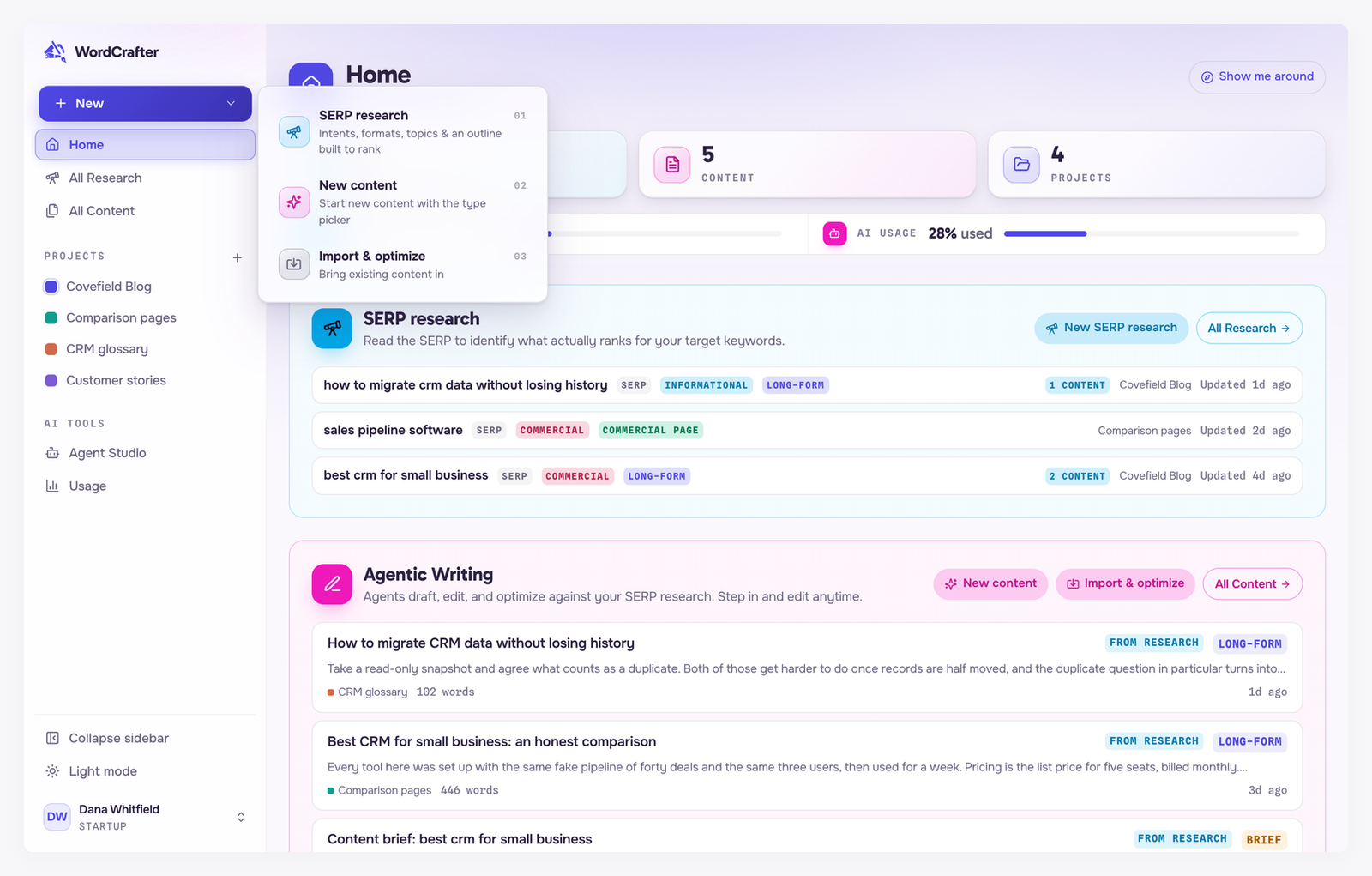
01 SERP research
Intents, formats, topics and an outline built to rank. WordCrafter reads the first page of Google for your keyword and shows you what it takes to rank there. You create content from the finished research, with the outline or page plan already in place.
Use it when the content needs to be found in search. It spends one research credit, and you can create as much content as you like from one research.
See SERP research, the complete guide.
02 New content
Start new content with the type picker. Pick long-form, news or a commercial page, name it, choose a project, and you are in the editor.
Use it when you already know what to write, or search ranking is not the goal. You can attach research to it later from the editor's More Options menu.
See Creating content.
03 Import & optimize
Bring existing content in. Import a published page by URL, paste Markdown or rich text, preview exactly what it becomes, and optionally research its keyword to find what it is missing.
Use it when the content already exists and you want to improve it.
See Import and optimize.
Why this order
The numbers follow how content usually comes together: know what ranks, then write, then refresh what you already have. You do not have to follow it. Each door works on its own, and the same three shortcuts appear across the app: Home offers New SERP research, New content and Import & optimize, and the Content and Research pages have their own buttons.
Opened from inside a project, all three doors file the new work in that project.